QuickDesk is a secure and reliable remote access app for connecting an iPhone or iPad to Windows computers. Use your mobile device to work remotely, manage and monitor computers, and access multiple remote hosts whenever you are away from your desk.
QuickDesk Feature Guide
Sign in
01
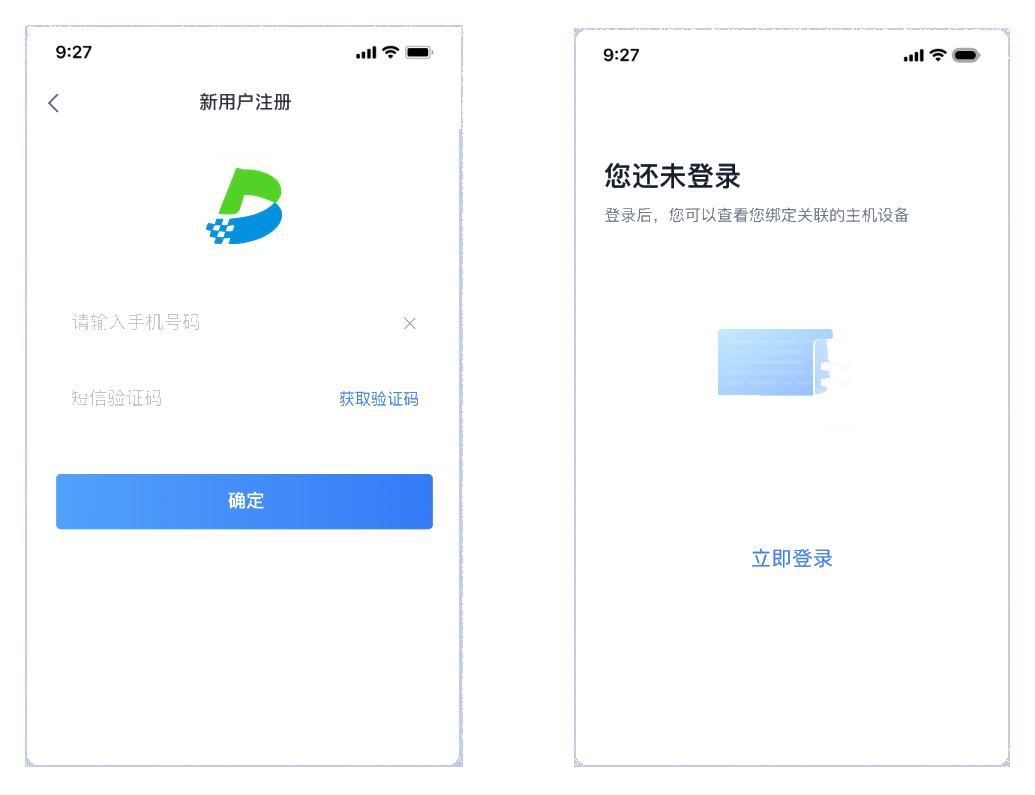
Tap “Me” and sign in to your account.
New users must register an account before signing in.
Remote control
02
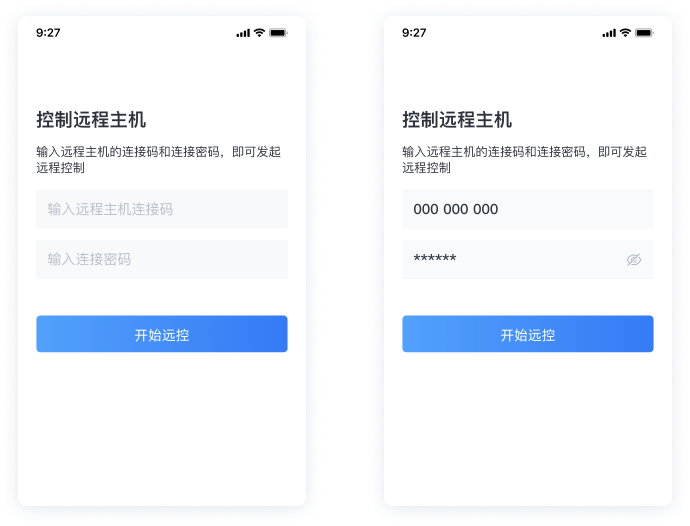
Open the remote-control page and enter the computer’s connection code and connection password.
Tap “Start Remote Control” to establish the session.
Add a remote host
03

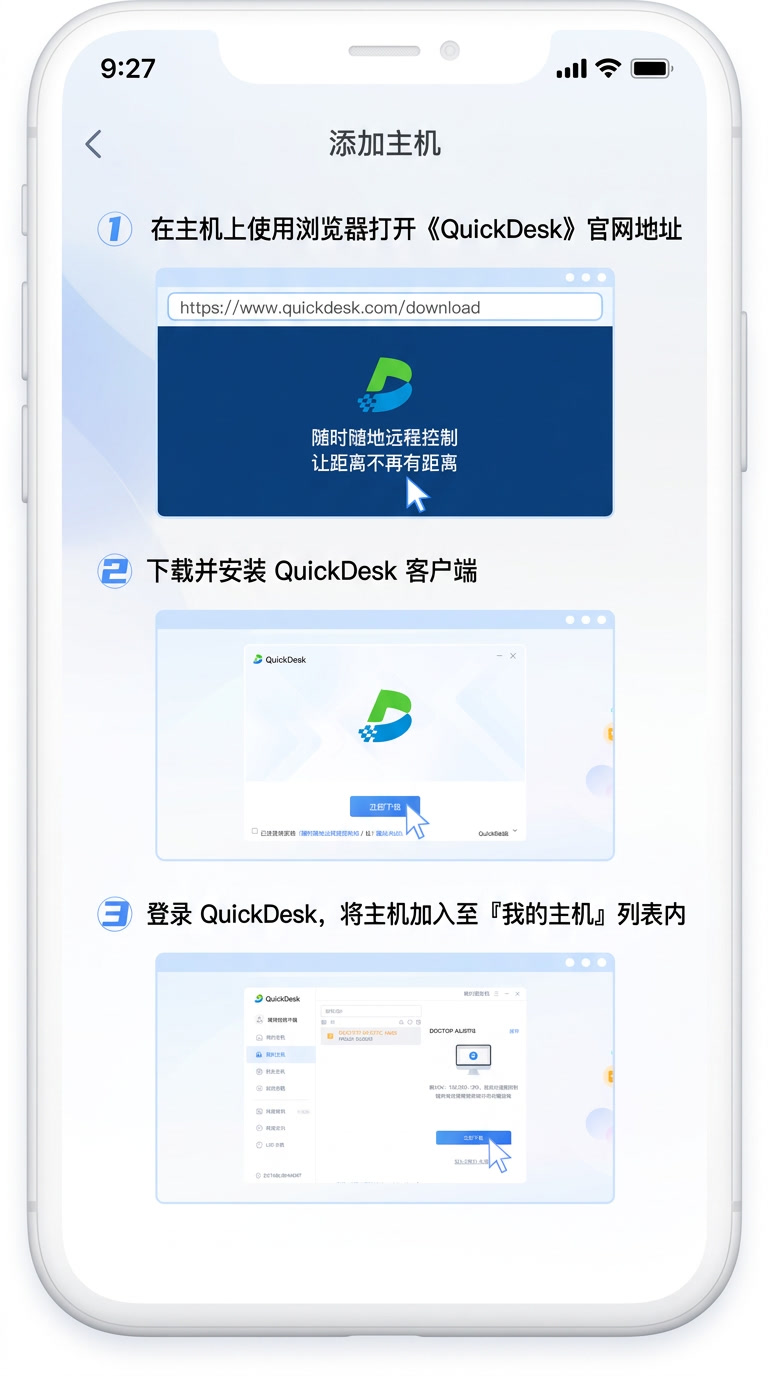
First install the PC client on the Windows host computer.
Sign in with the same account and add the host to the list. Once added, the new host appears on your iPhone or iPad.
Connect to a host in your list
04
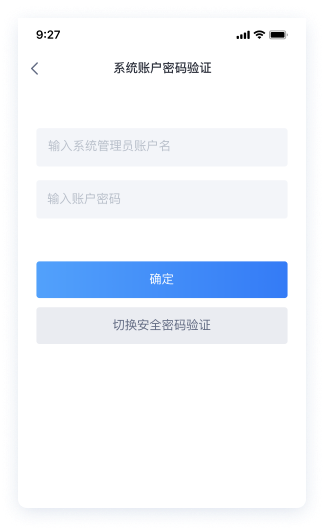
Method 1: Use a Windows administrator account
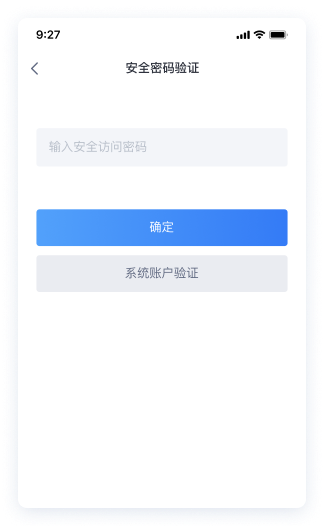
Method 2: Use a custom access password
Remote session menu
05
During a remote session, open the menu in the lower-right corner.
Use this menu to access additional remote controls.
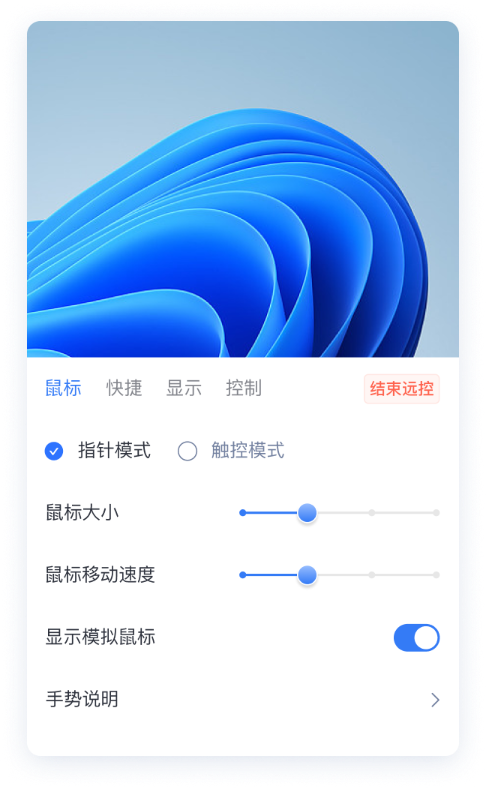
5.1 — Control modes
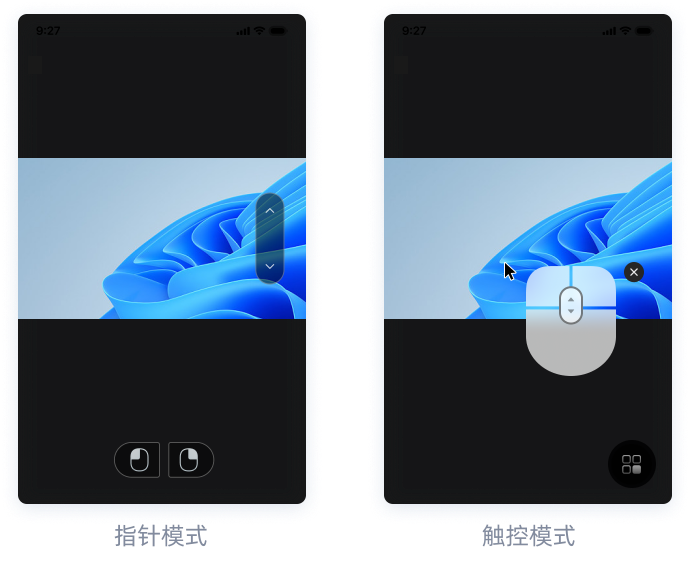
Two control modes are available: Pointer Mode and Touch Mode.
Pointer Mode: Slide your finger across the screen to move the mouse pointer. Multiple gestures are supported.
Touch Mode: Tap an item on the remote desktop to interact with it directly.
5.2 — Quick actions
Keyboard: Use the iOS keyboard to type on the remote host;
Lock desktop: Lock the remote host;
Show desktop: Minimize open applications and show the remote host’s desktop;
Switch displays: Switch between displays when the remote host uses multiple monitors;
View-only mode: Disable control input from your iPhone or iPad to avoid unintended actions on the remote host;
Shut down: Shut down the remote host;
Restart: Restart the remote host.
Touch gestures
06
Use these gestures to navigate and control the remote desktop.
One-finger swipe: Pan across the remote desktop;
One-finger tap: Select an item, equivalent to a left-click;
One-finger double-tap: Double-click an item; for example, double-tap a title bar to maximize or restore a window;
One-finger long press: Enter drag mode;
Two-finger tap: Perform a right-click;
Two-finger double-tap: Set the view to 50% zoom;
Two-finger vertical swipe: Scroll vertically, like using a mouse wheel;
Two-finger pinch: Pinch in or out to zoom the remote desktop;
Pinch, then swipe: Pan across the remote desktop while zoomed in.