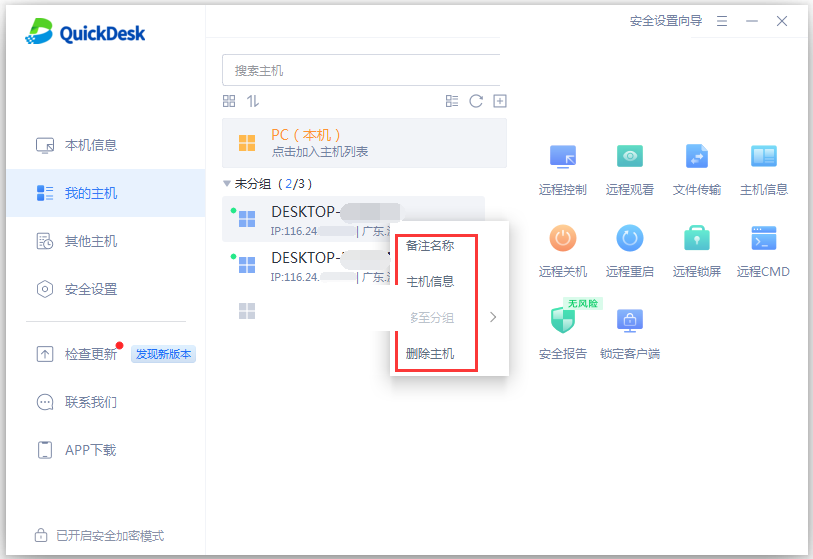
When using QuickDesk to remotely control multiple computers, you can add frequently used computers to the My Computers list. This lets you quickly select a target computer and start a remote-control session.
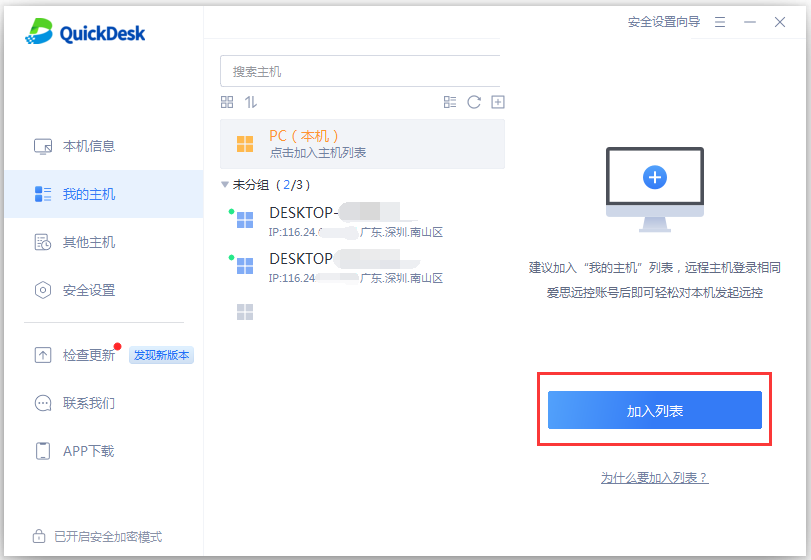
To use remote control securely, you must complete a security verification the first time you use QuickDesk. When adding a computer to the list, you can verify with either a Remote Password or a system administrator account.
How do I add a computer to the list?
On the target computer page, click “Add to List,” choose a verification method, and complete the verification. The computer is added to the list after verification succeeds.
Method 1: Verify with a Remote Password (recommended)
1. Click “Add to List” and select “Remote Password Verification (Recommended).”
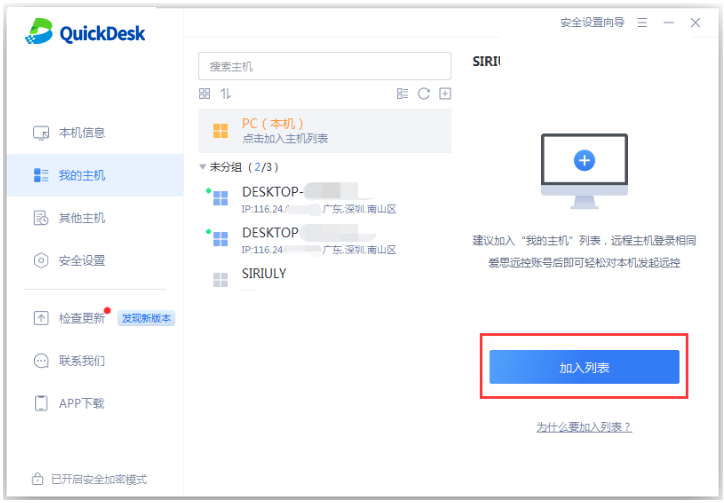
2. Enter and confirm the Remote Password set when adding the computer to complete verification.
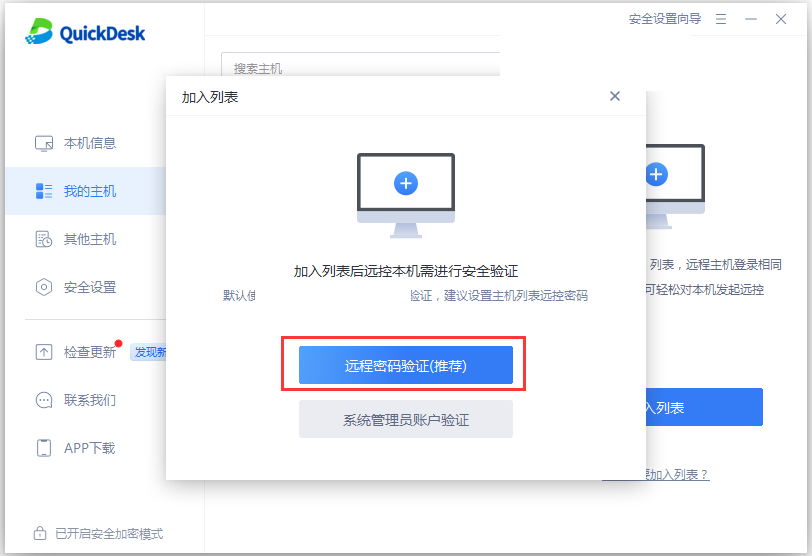
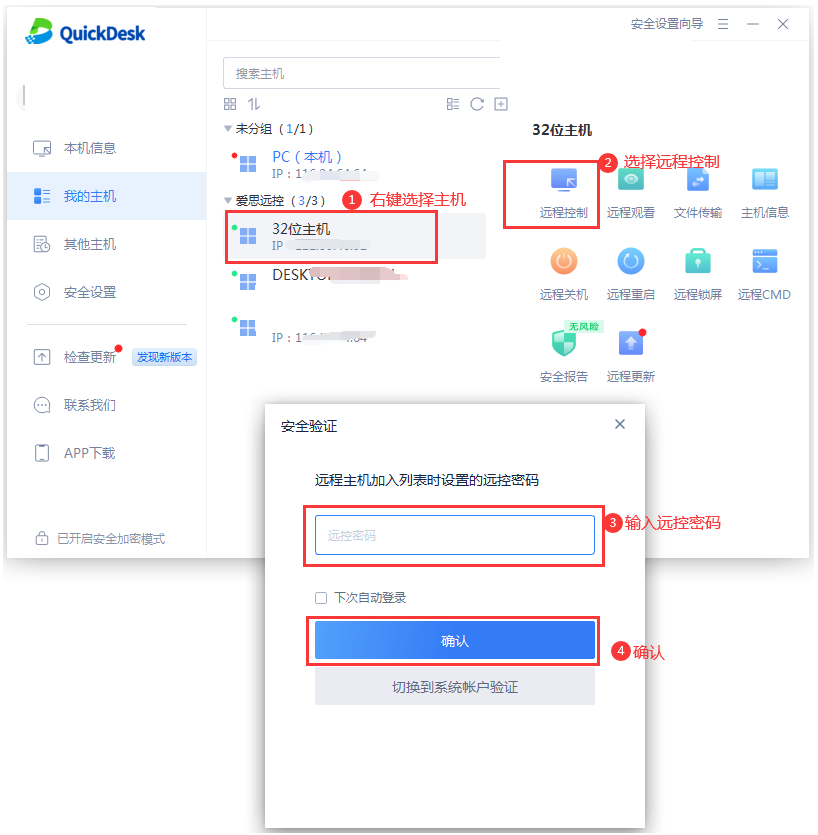
To control the computer later, right-click it in the list, click “Remote Control,” and enter its Remote Password to establish a connection.
Method 2: Verify with a system administrator account
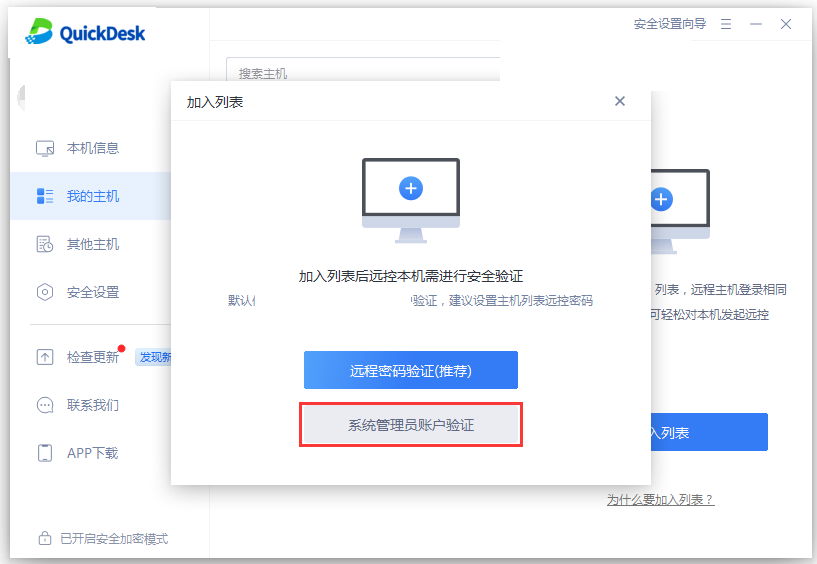
1. When adding the local computer to the list, select “System Administrator Account Verification.”
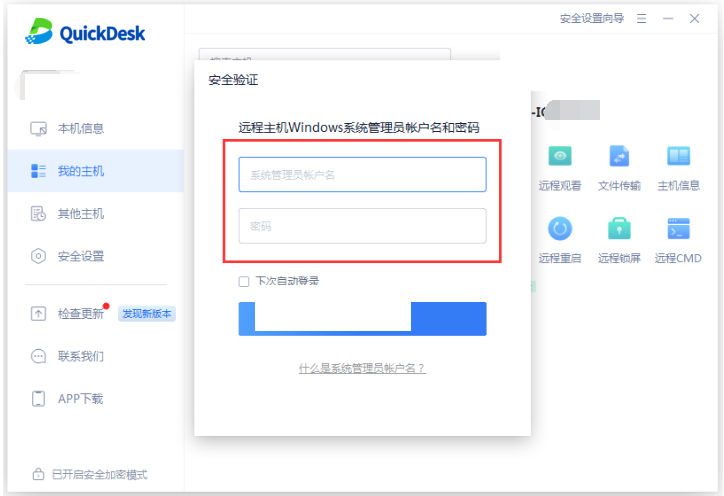
2. Enter the remote computer’s system administrator username and password, then click “OK” to complete verification.
Repeat these steps to add multiple computers to the list. When you no longer need to control a computer remotely, right-click it to remove its binding or delete the list entry.