01
Local access
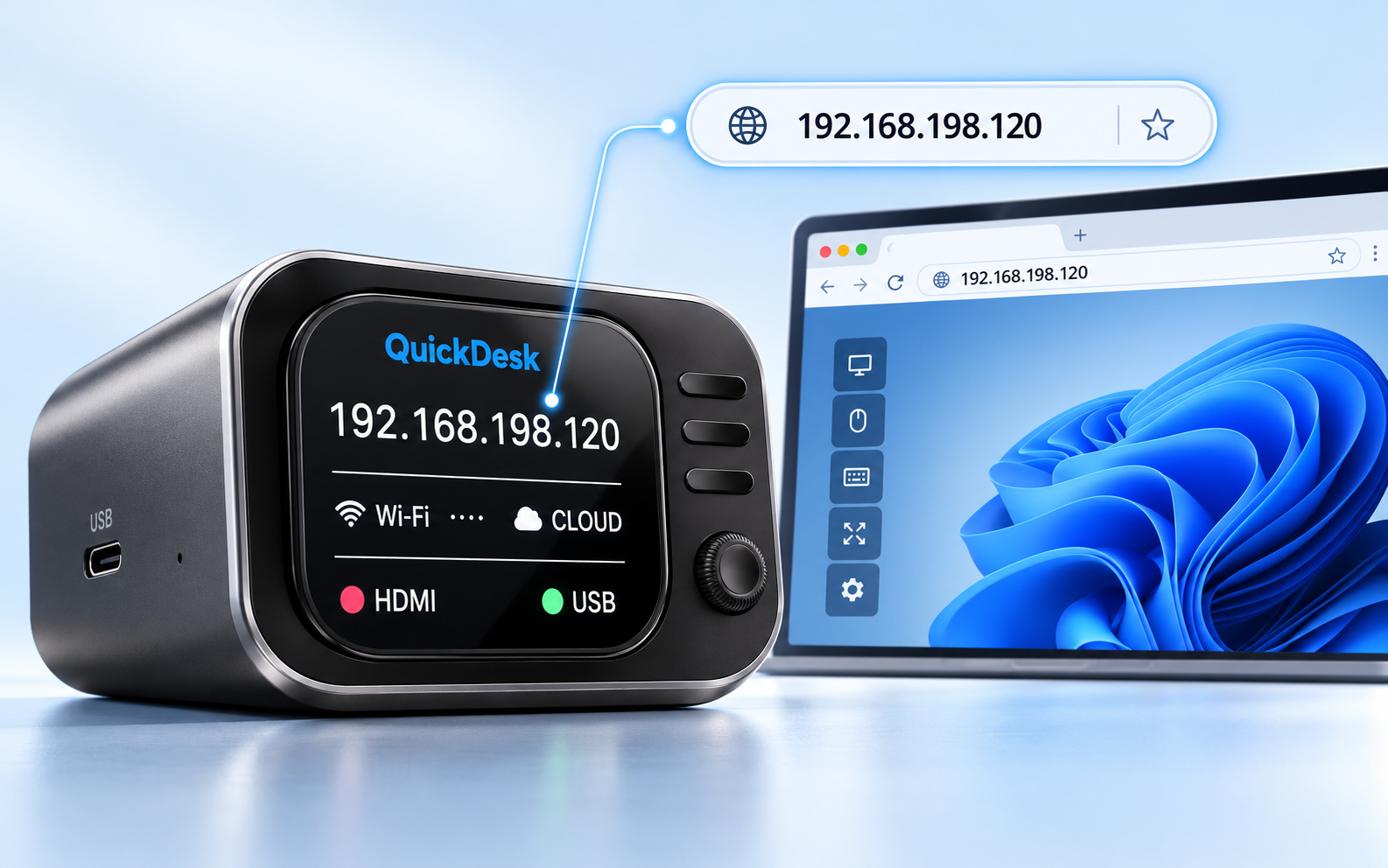
On the same local network, open the IP address shown on Mini in a browser to control the connected computer.
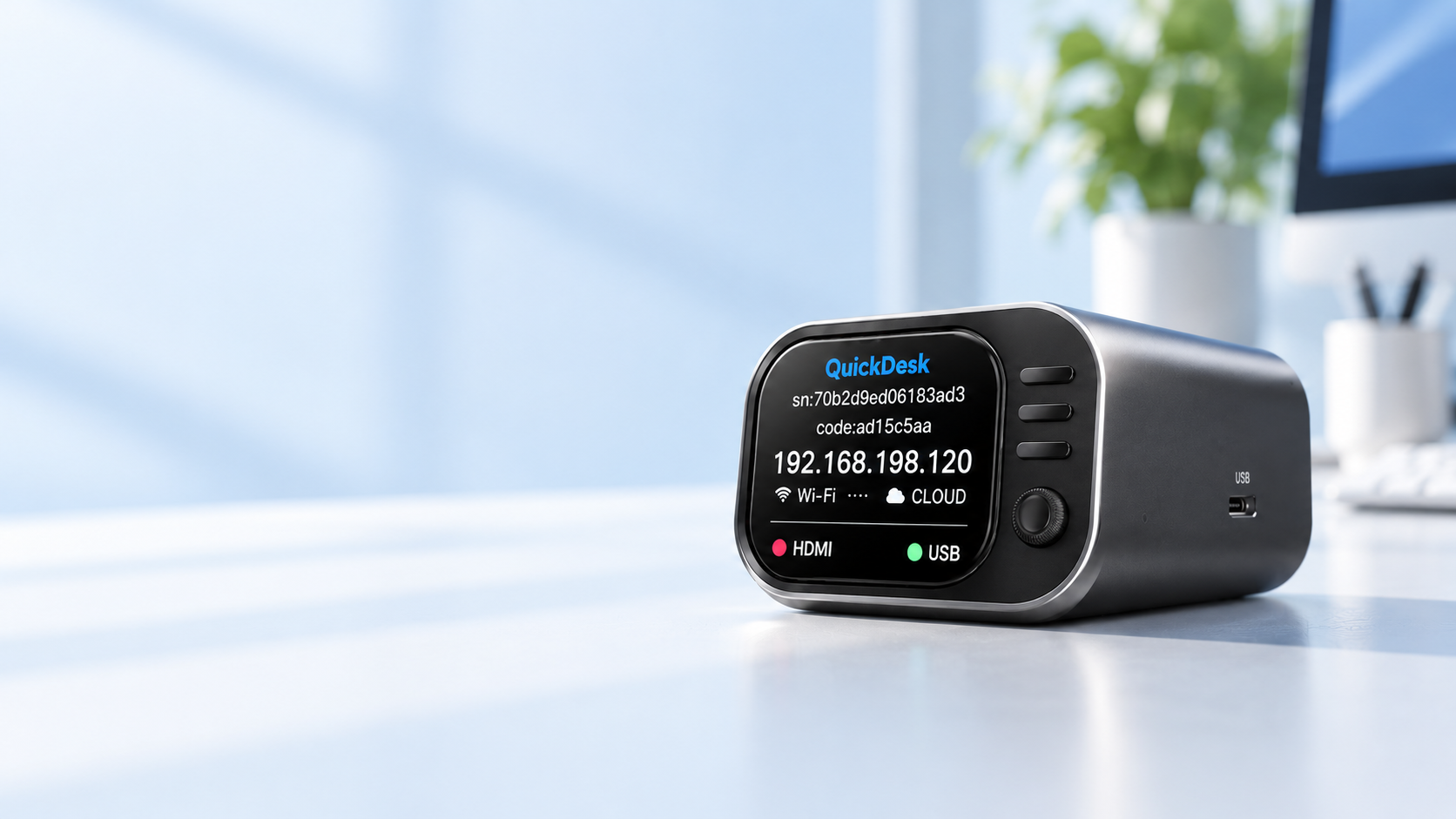
A PERSONAL IP KVM
Hardware remote access, through your browser.
Control your computer without installing software on the computer you control.
Coming soon
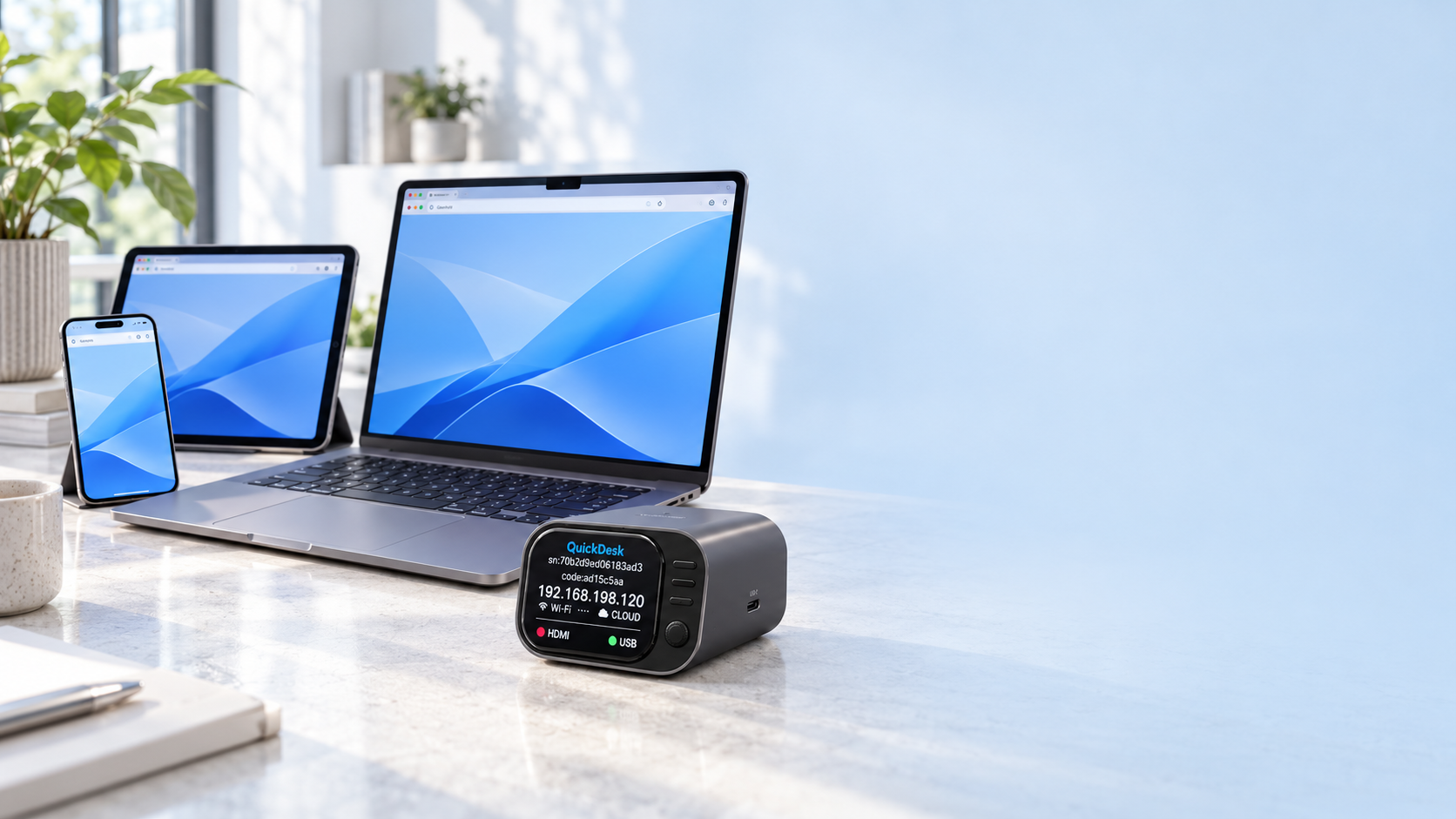
A FAMILIAR WAY TO CONNECT
Open a browser on a phone, tablet or computer to remotely control the computer connected to Mini.
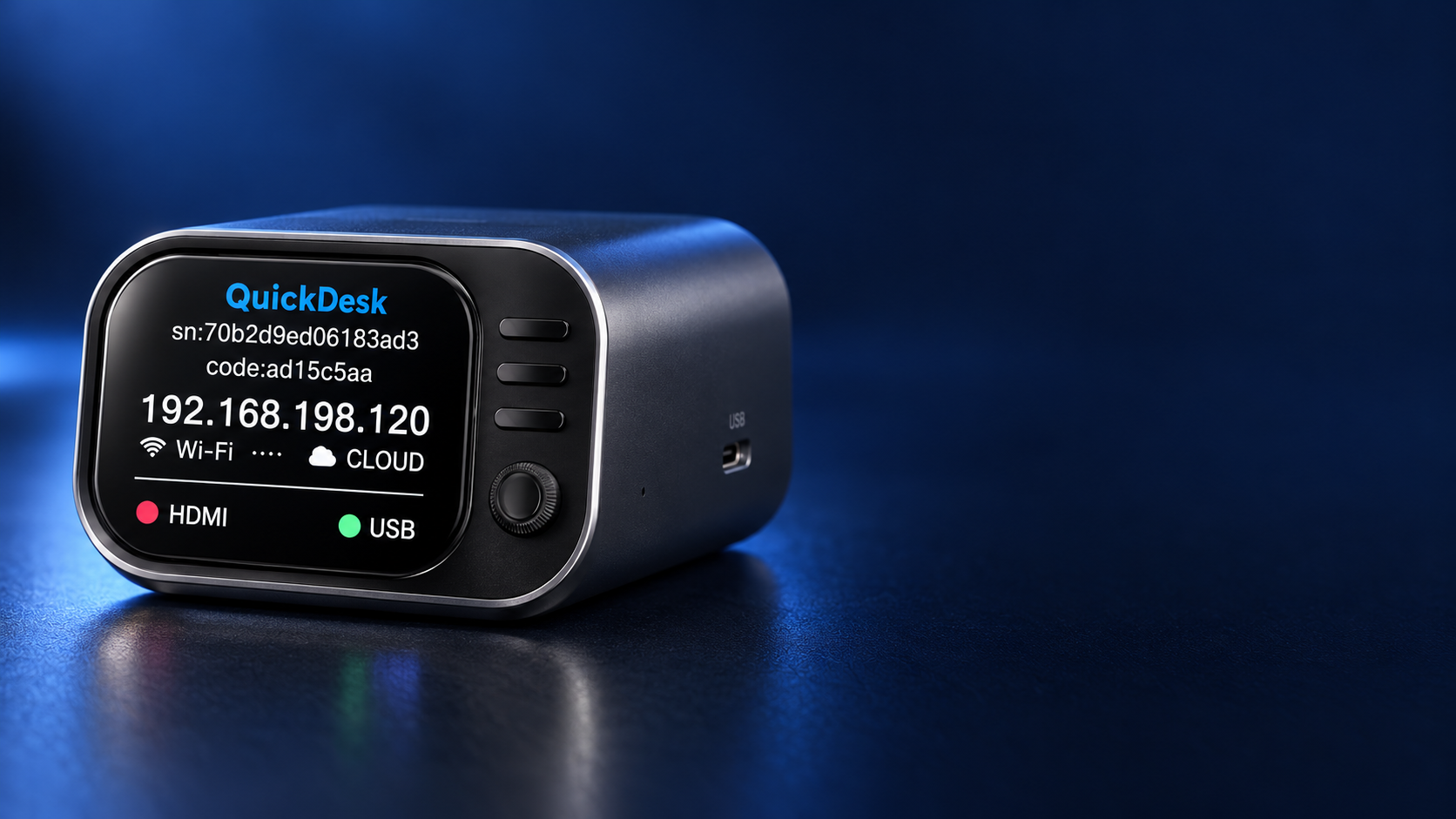
A DISPLAY THAT KEEPS YOU INFORMED
Mini’s built-in display shows the device details and connection state you need to get online and start a session.
TWO WAYS TO REACH YOUR COMPUTER
Choose a local browser connection or reach Mini through your QuickDesk account.
On the same local network, open the IP address shown on Mini in a browser to control the connected computer.
Use access.quickdesk.com over the internet to control your computer from a phone, tablet or computer browser, across operating systems. No remote-control software to install.
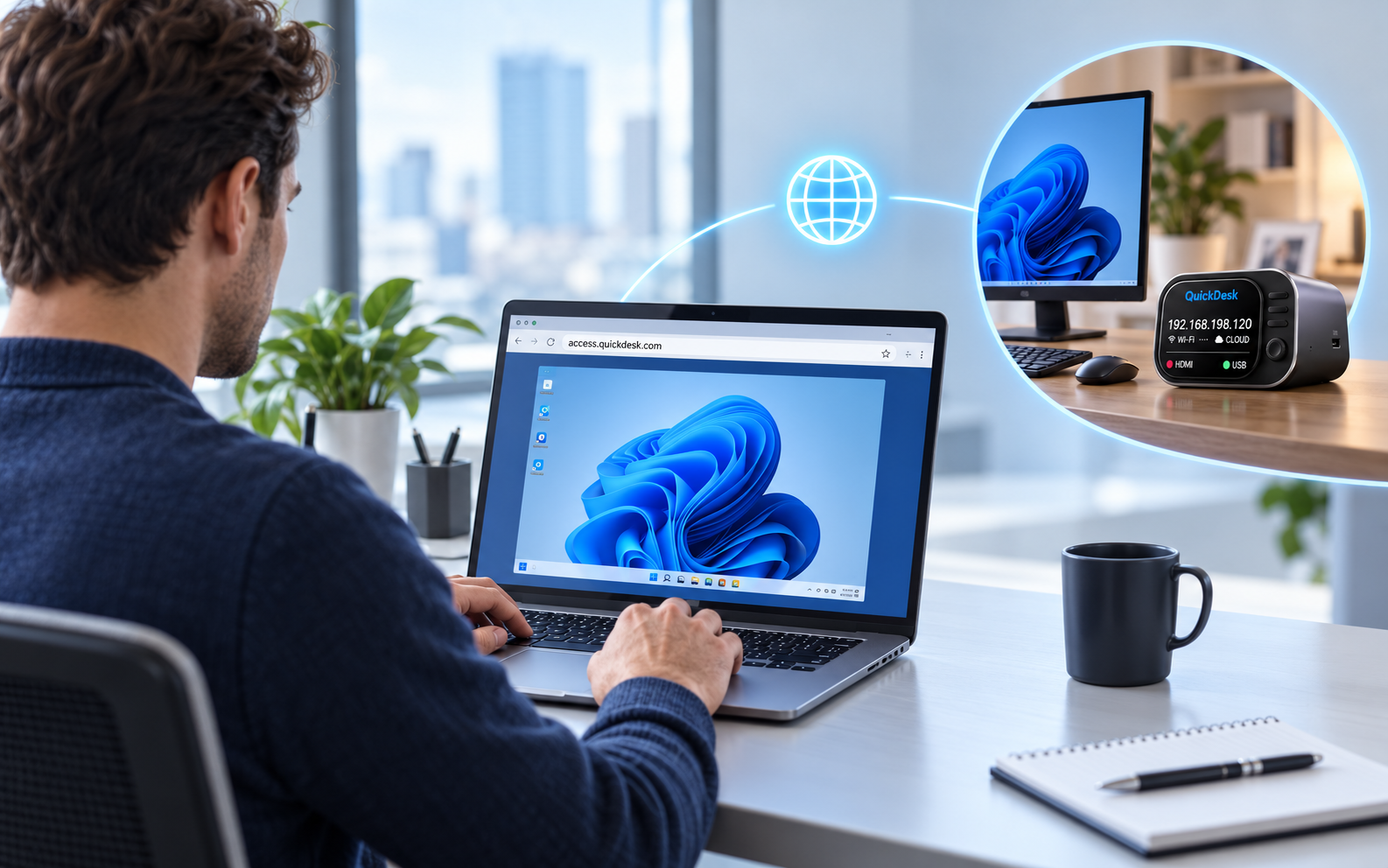
QuickDesk platform connectivity includes zero-trust communication protection and network traversal, without exposing a public IP address.
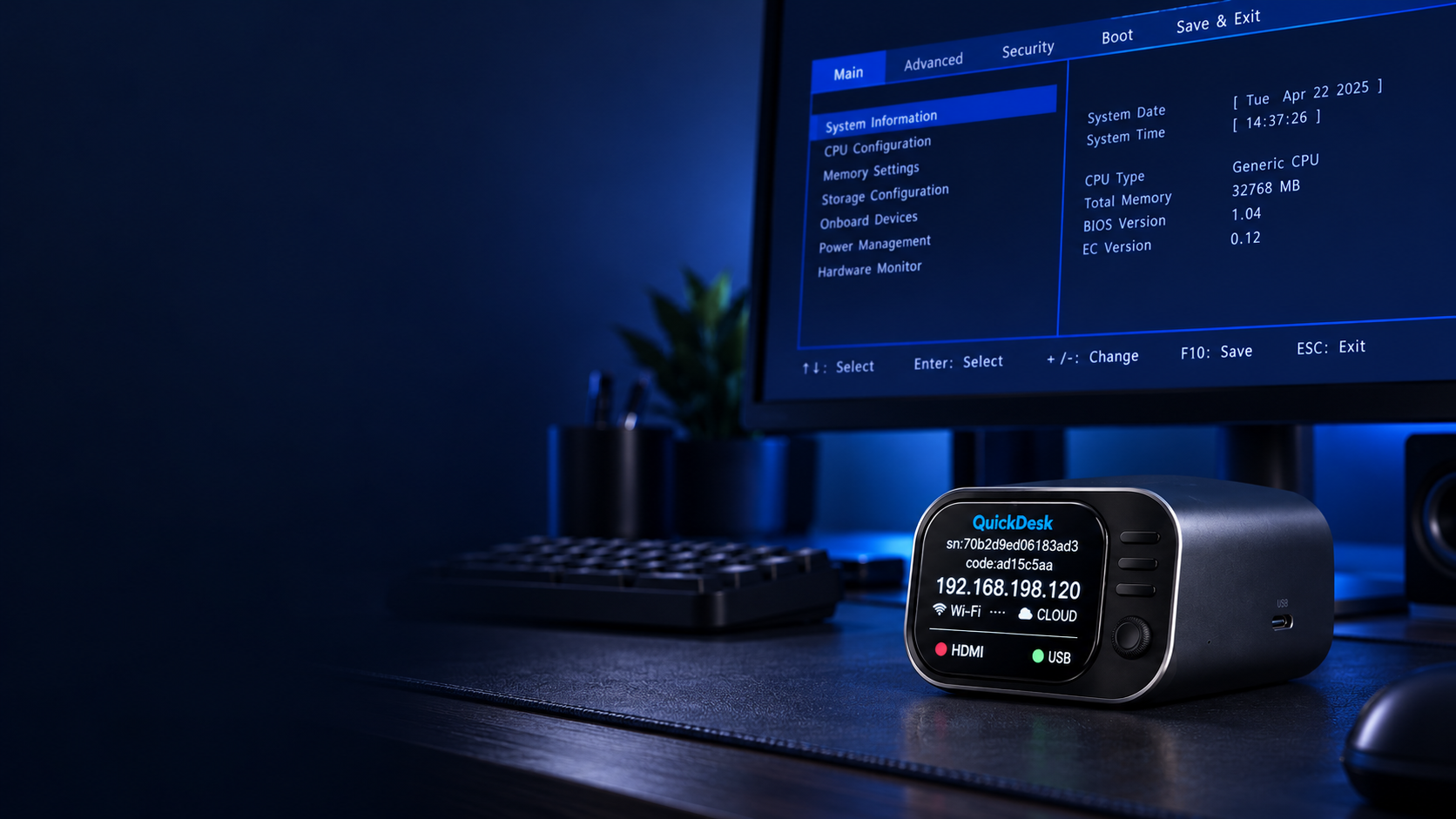
CONTROL BEFORE THE DESKTOP
Access BIOS remotely and install an operating system using a platform-assigned image or an image stored on the device.
BIOS and operating-system setupUSEFUL TOOLS, BUILT IN
Enter text in the control platform and send it to the connected computer.
Share a device with another account or make it available to your team.
Upload files in the browser and send them to the connected computer.
Enter a MAC address or scan devices on the local network, then send a Wake-on-LAN command.
Use the virtual keyboard and shortcuts available on the QuickDesk platform.
MADE FOR EVERYDAY SETUPS
From a single home PC to a shared studio workstation, Mini brings practical hardware access to personal setups.
Open your home computer from a phone, tablet or laptop browser while travelling or working elsewhere.
Reach the desktop in another room from a browser on the same local network.
With access shared through the platform, help a family member troubleshoot their connected computer.
Reach BIOS and handle operating-system setup remotely when a computer is being configured.
Keep a personal test machine reachable through a browser and use Wake-on-LAN when configured.
Share a connected workstation with teammates and send files or text through the platform.
A SIMPLE FIRST SETUP
Set up Mini from a phone or computer browser. The computer you control does not need software installed.
Connect the HDMI cable and USB data cable to the computer you want to control. Power Mini with a 5 V / 2 A adapter.
Press the Wi-Fi setup button once. Join the Mini Wi-Fi shown on its display, then open 192.168.77.1 in your browser. Whenever the Wi-Fi setup process asks for a password, use the same password shown on the display, then choose your Wi-Fi network.
For local access, open the IP shown on Mini in a browser on the same network. For internet access, create an account or sign in at access.quickdesk.com, then add Mini by Bluetooth discovery or with its serial number and verification code.
When Wi-Fi and Ethernet are both available, Mini prioritizes Ethernet. A long press of the setup button initializes the device so you can configure Wi-Fi again.
SMALL ON YOUR DESK. BIG ON ACCESS.
FOR MORE DEMANDING ENVIRONMENTS
Mini can be used for server-room access. For industrial environments and a broader professional feature set, QuickDesk Pro is the recommended choice.
Explore QuickDesk Pro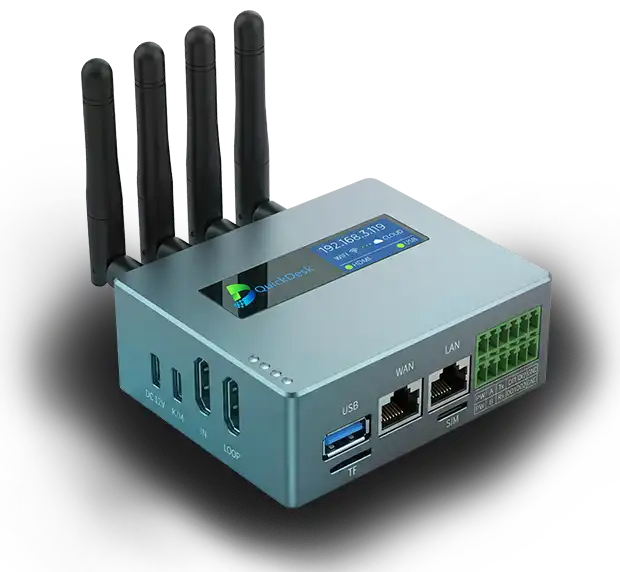
GOOD TO KNOW
No. Mini connects to the controlled computer over HDMI and USB, so that computer does not need a Mini software installation.
Sign in at access.quickdesk.com and use Bluetooth discovery, or enter the serial number and verification code shown on Mini’s display.
Remove the device from its current account in access.quickdesk.com first. It can then be added to another account.
Mini initializes and returns to the Wi-Fi configuration flow. To transfer device ownership, remove it from the current account in the web console.