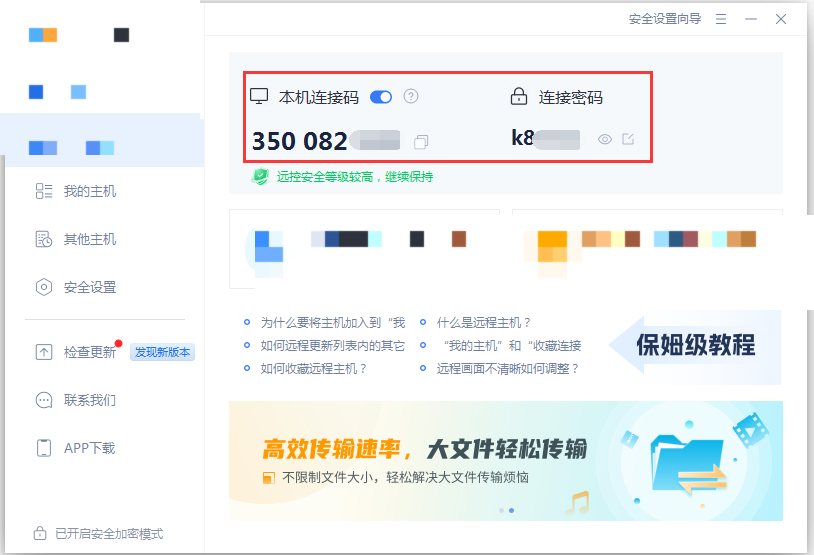
After downloading and installing QuickDesk, register for an account and sign in to start controlling computers remotely.
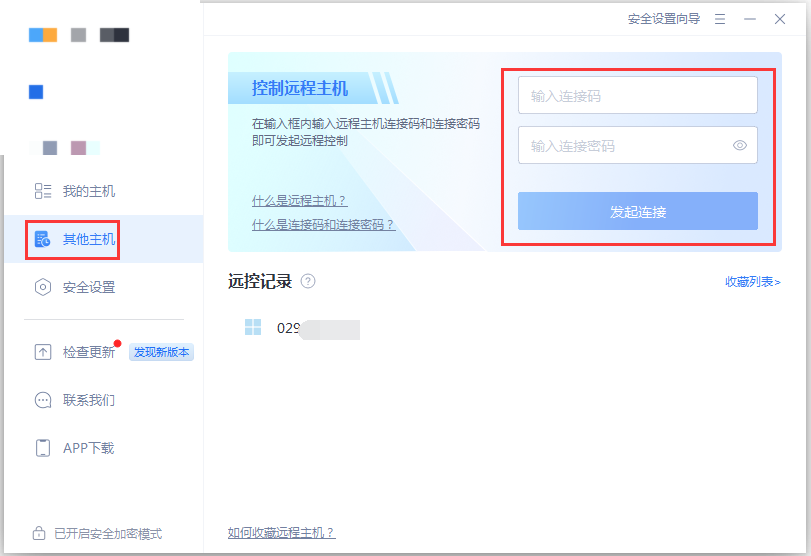
QuickDesk separates computers into My Computers and Other Computers. My Computers contains computers in different locations that use the same account; Other Computers contains computers associated with other users’ accounts.
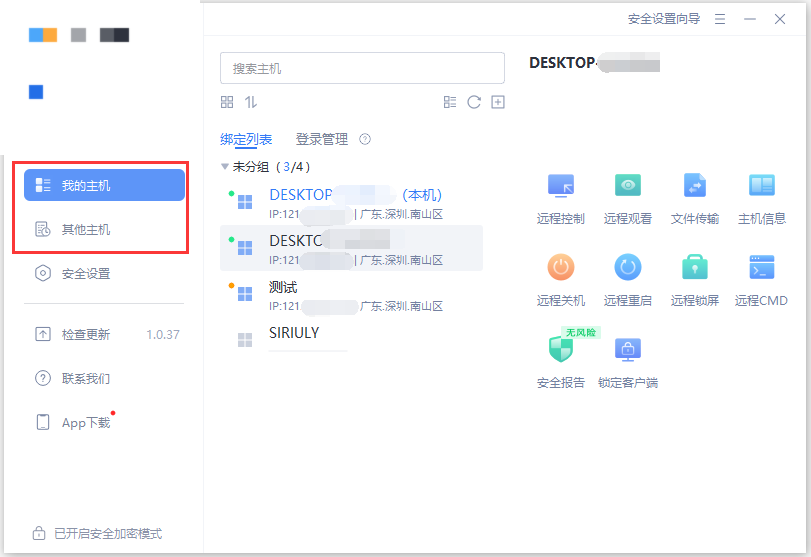
1. To control a computer in My Computers remotely:
1. Open QuickDesk, sign in, and add the local computer to your My Computers list.
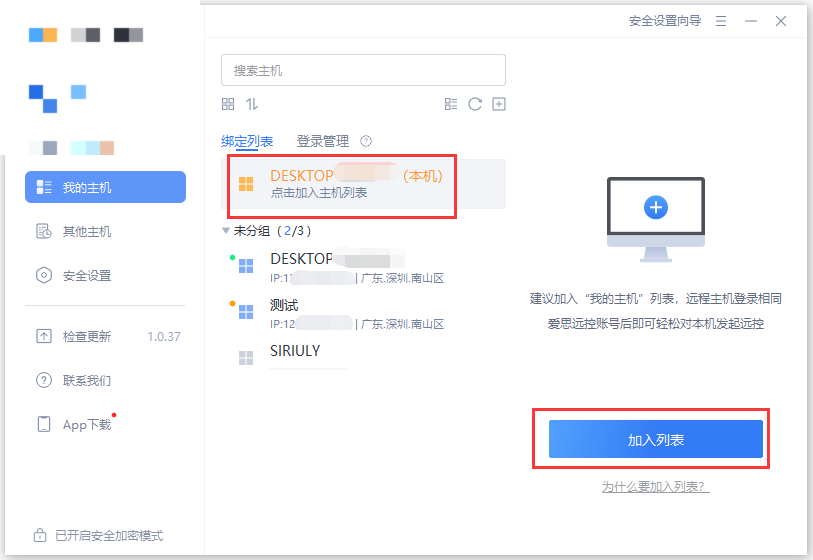
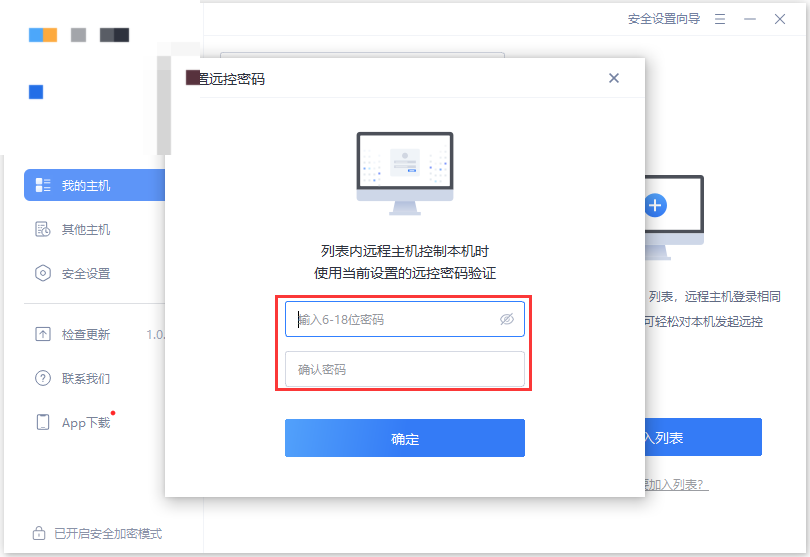
2. For added security, set a Remote Password on the local computer. Once set, other devices in your My Computers list must enter this password before they can control the local computer remotely.
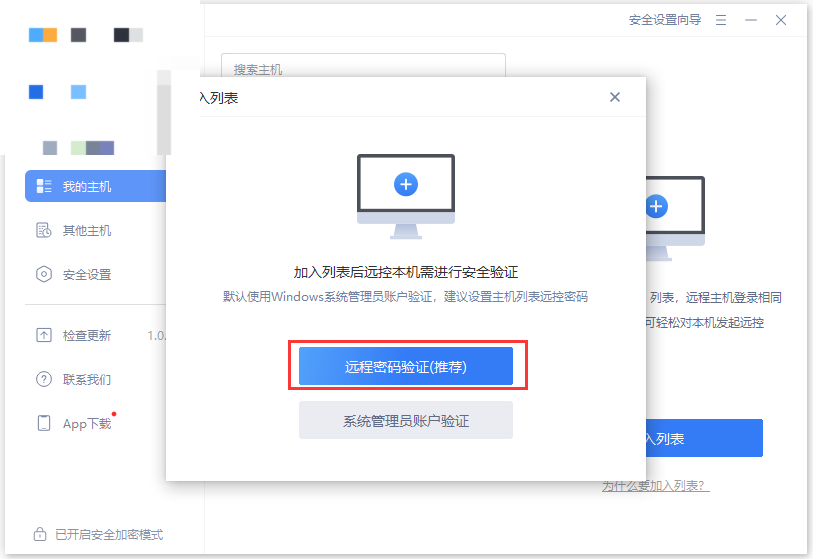
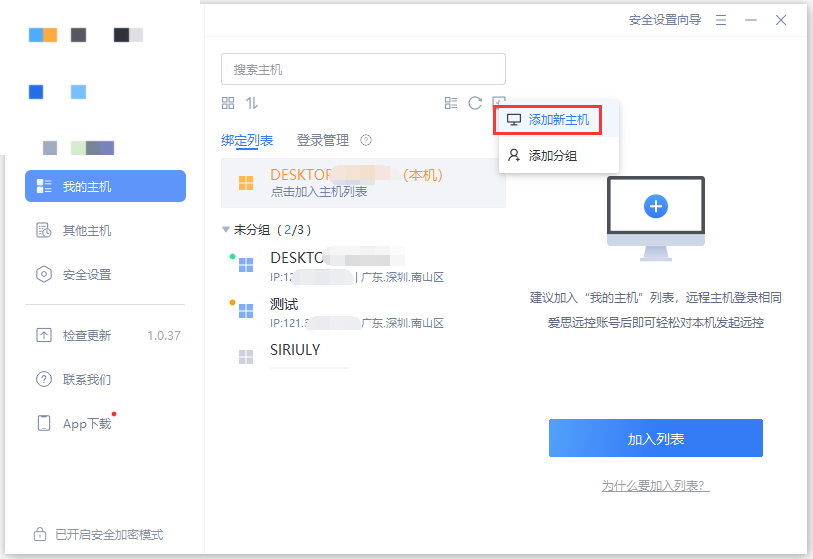
3. Add the new computer you want to control remotely to the My Computers list.
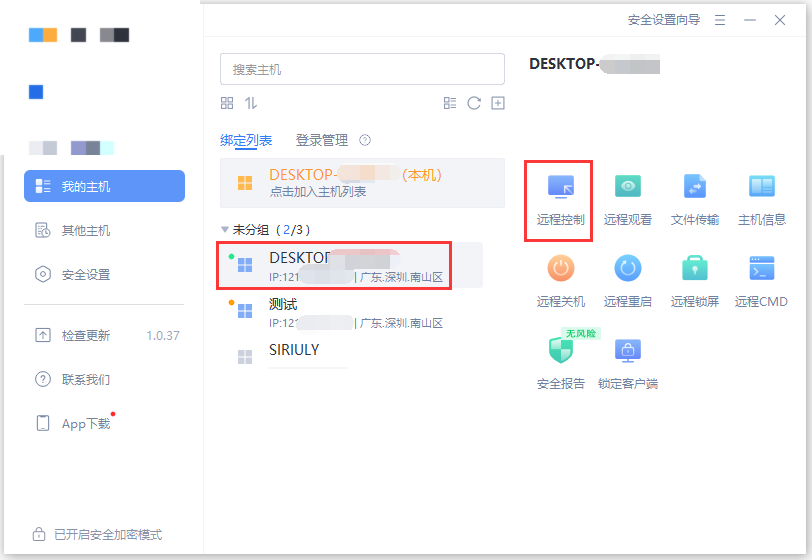
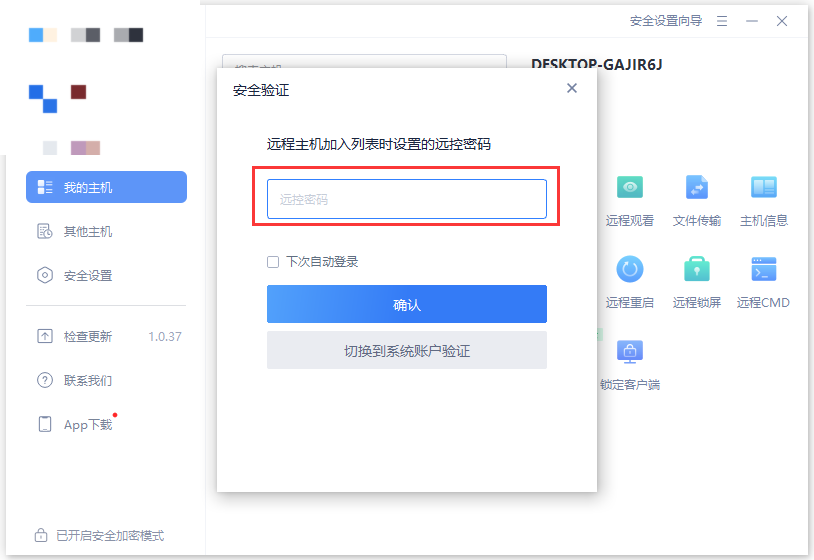
4. To control a computer in My Computers - Bound List remotely, select it and enter its Remote Password to start the remote-control session.
2. To control a computer in Other Computers, enter the remote computer’s Device Code and Connection Password. Once connected, you can start controlling it remotely.
Tip: Ask the other user to find the local Connection Code and Connection Password in the location shown below.