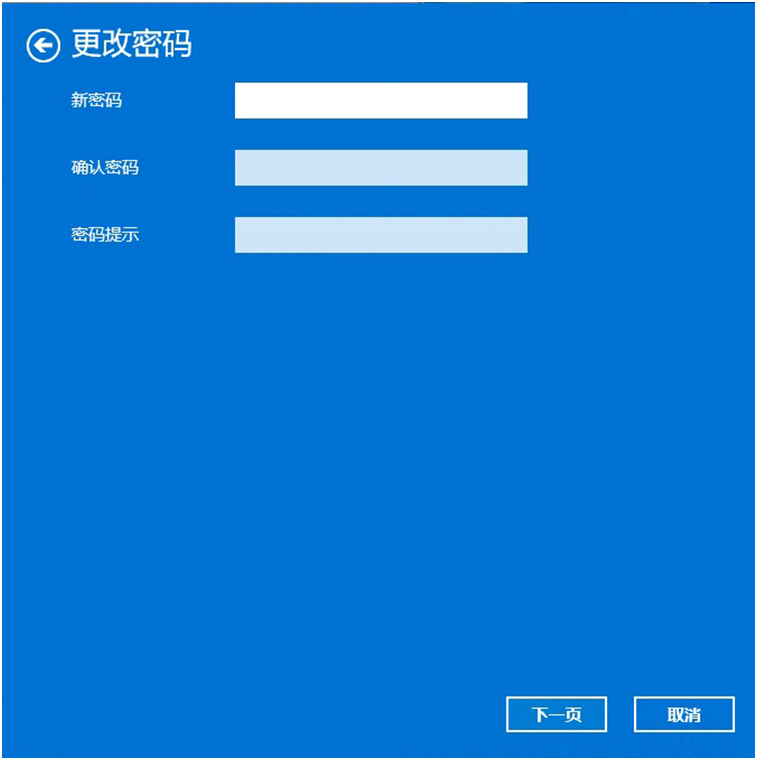
The default system administrator username is administrator. The password is the key to accessing the administrator account, which normally has no password by default. Setting an administrator password provides a security credential for the user account and computer.
Follow the instructions below to create an administrator account password in Windows 7, Windows 8, Windows 10, or Windows 11.
Set a system administrator account password in Windows 7 or Windows 8:
1. Click the “Start” menu and open “Control Panel.”
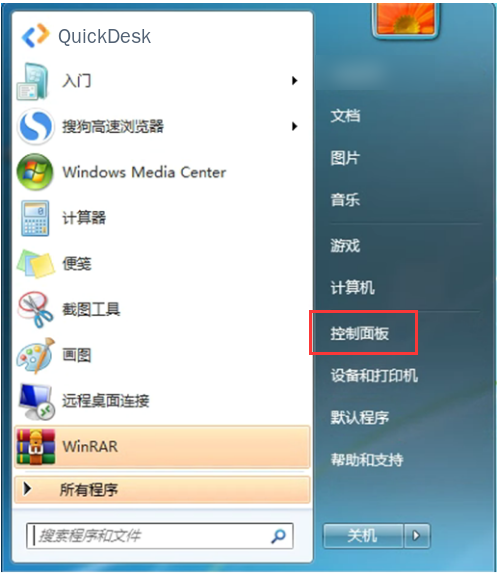
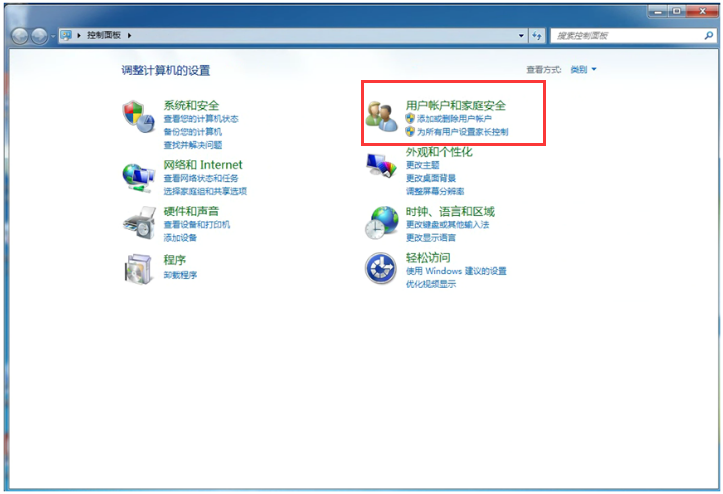
2. In “Control Panel,” open “User Accounts and Family Safety.”
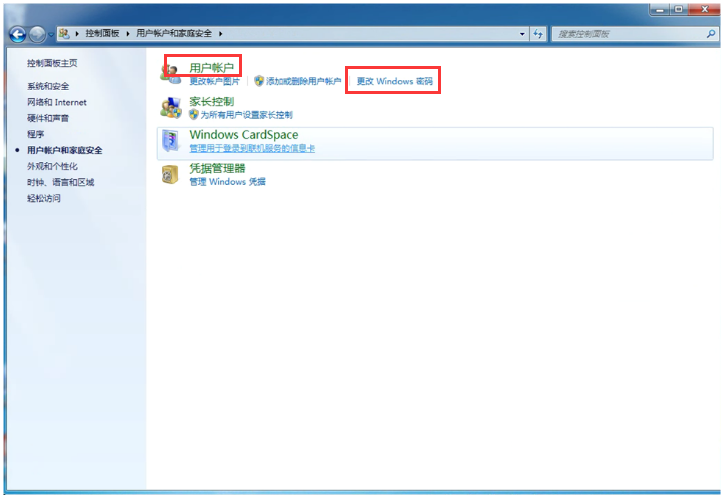
3. Under “User Accounts,” select “Change your Windows password.”
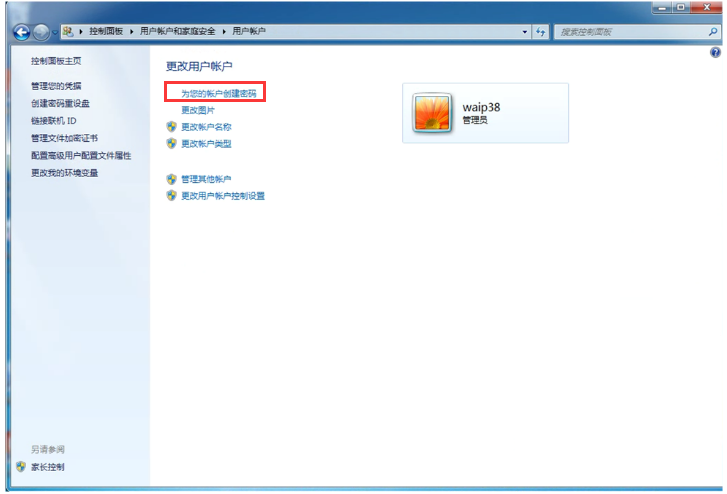
4. In the window that opens, select the administrator account, then click “Create a password for your account.”
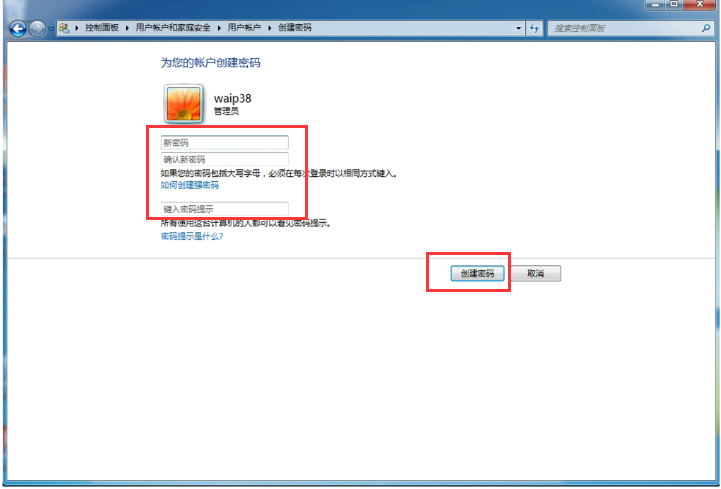
5. Enter the password as prompted, then click “Create password.”
Set a system administrator account password in Windows 10:
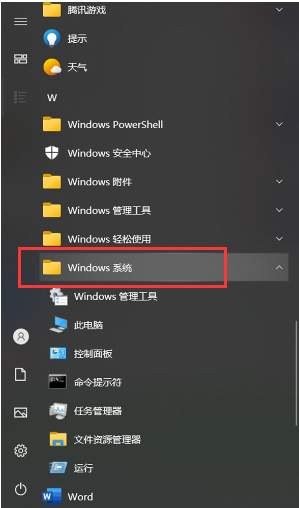
1. Click the “Start” menu and open “Windows System.”
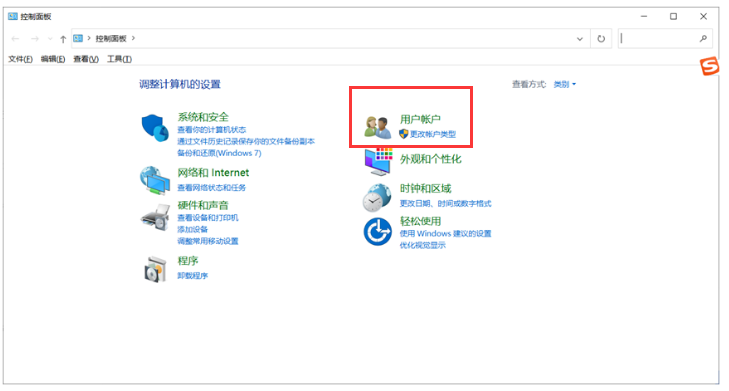
2. Open “Control Panel,” then click “User Accounts” (Change account type).
3. Click “Local account.”
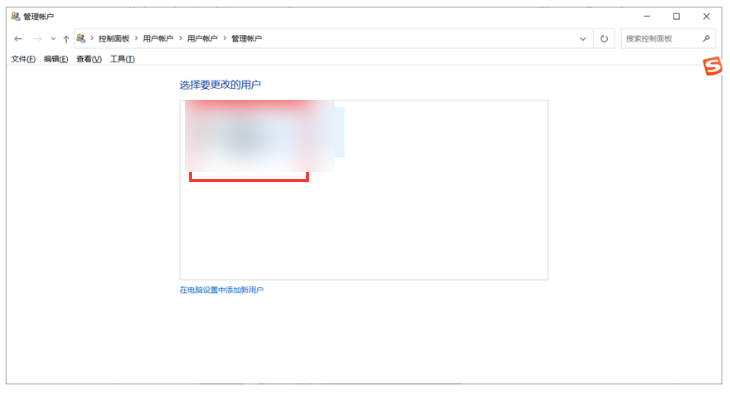
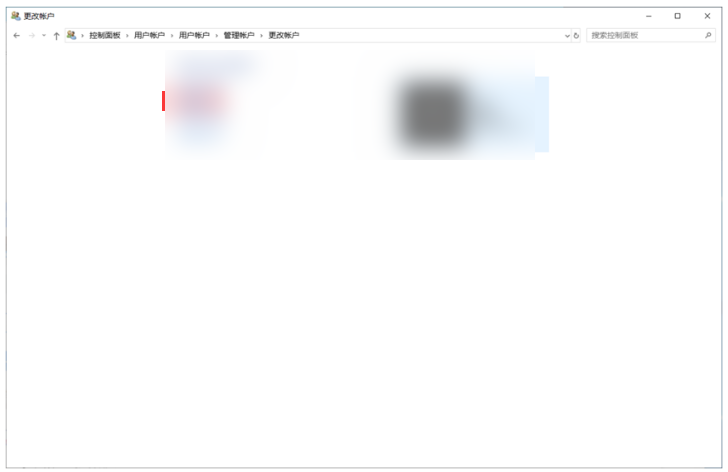
4. Click “Create a password” on the left.
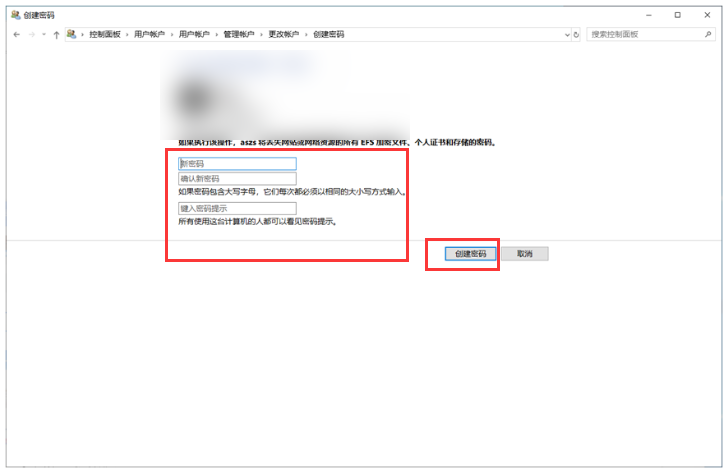
5. Enter a password, then click “Create password” below.
Set a system administrator account password in Windows 11:
Windows 11 has no password by default after installation, so you can sign in without one. Follow these steps to create an administrator account password:
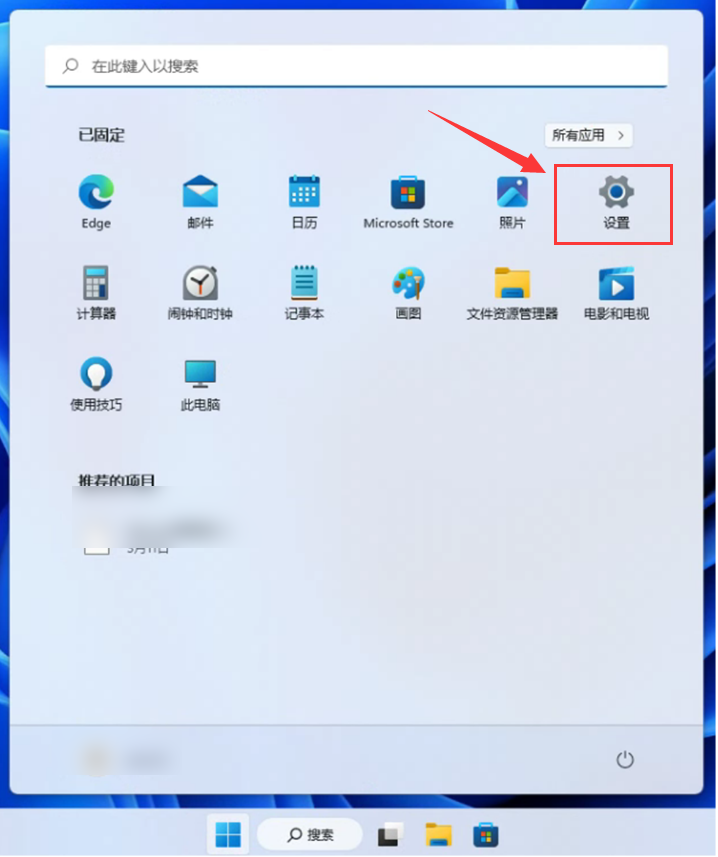
1. Click the Windows icon and open “Settings” on the computer.
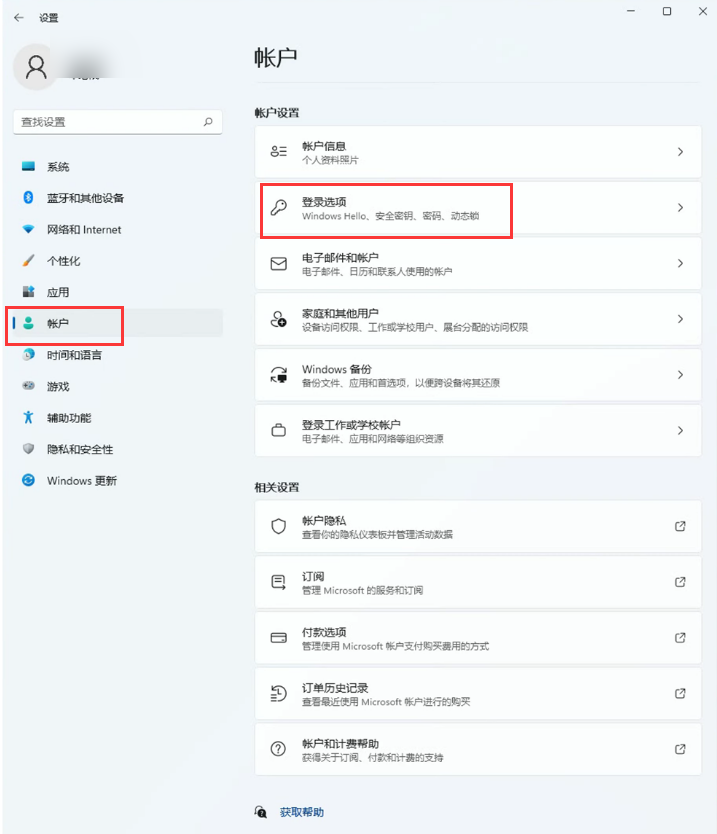
2. Open “Accounts” in the left sidebar, then go to “Sign-in options” on the right.
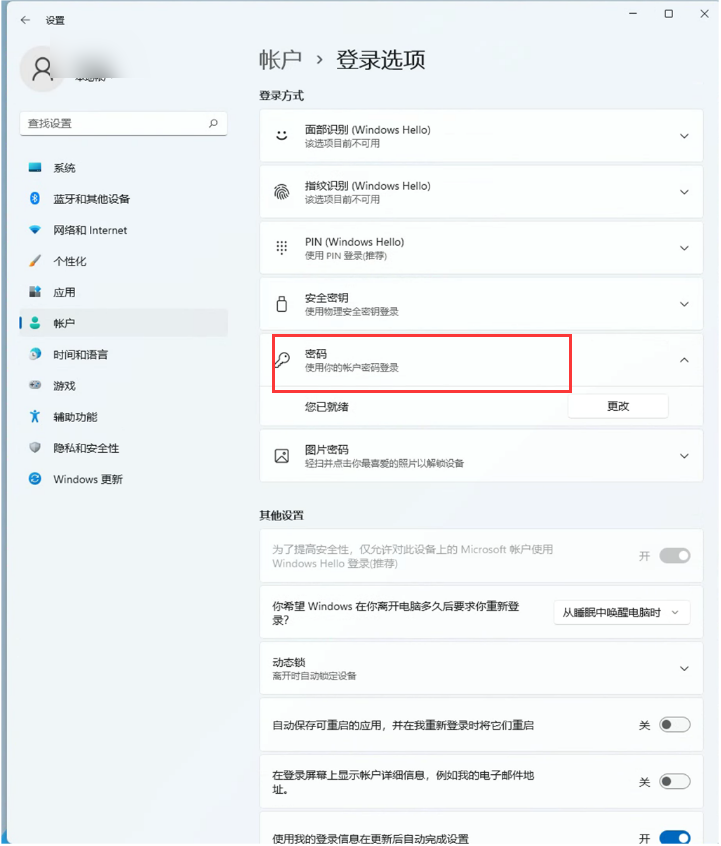
3. Expand “Password” and click “Create a password” below it.
4. Enter the password you want, then click “Next” to finish setting it.