When several operations or technical team members need to control the same remote computer at once, QuickDesk will ask them to wait until an existing connection ends if all of the controlled computer’s remote-control channels are in use.
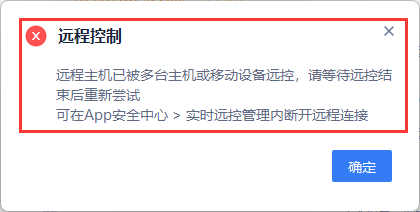
When this notice appears, you can wait for another remote-control connection to end or add more remote-control channels for the computer being controlled.
What is a remote-control channel?
When one computer starts a remote-control session with another, it uses one remote-control channel. For example, if computer A is controlling computer B and computer C also needs to control B at the same time, B needs at least two available channels.
QuickDesk VIP includes 2 remote-control channels by default, and SVIP includes 3. If more people need to collaborate at the same time, you can add remote-control channels for the computer being controlled through Advanced Benefits.
Additional channels can be used together with the channels included in the membership.
Purchase more remote-control channels
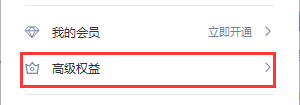
1. Open the QuickDesk account menu and go to “Advanced Benefits.”
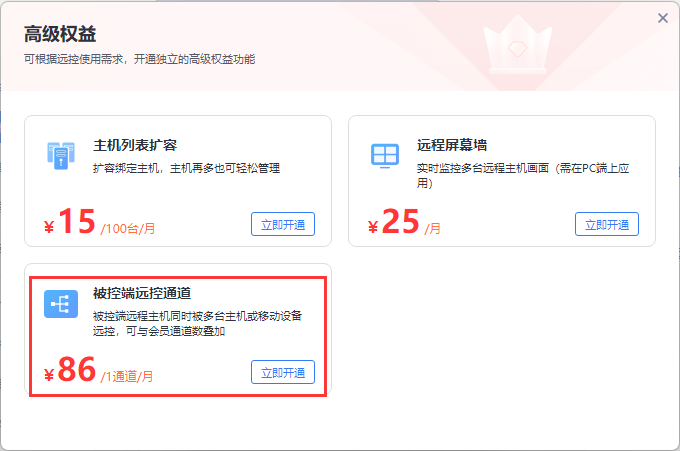
2. Find “Remote-control Channels for the Controlled Computer” and click “Activate Now.”
3. Choose how many channels to add and the subscription period, then complete the payment. Each additional channel allows one more remote-control connection to be started at the same time.
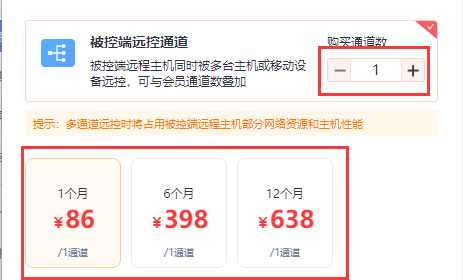
Note: The QuickDesk account signed in on the controlled computer must be the same account that purchased the remote-control channels.