The computer being controlled must meet the following requirements for QuickDesk to power it on remotely.
1. Remote power-on is currently supported only on Windows.
2. At least one computer on the same local area network (LAN) as the computer being controlled must remain online.
As shown below, at least one computer on the LAN must be online so it can send a wake-up command to the offline computer. (Gray indicates offline.)
Requirements:
1. The motherboard supports Wake-on-LAN (WOL).
2. The network adapter supports wake-up.
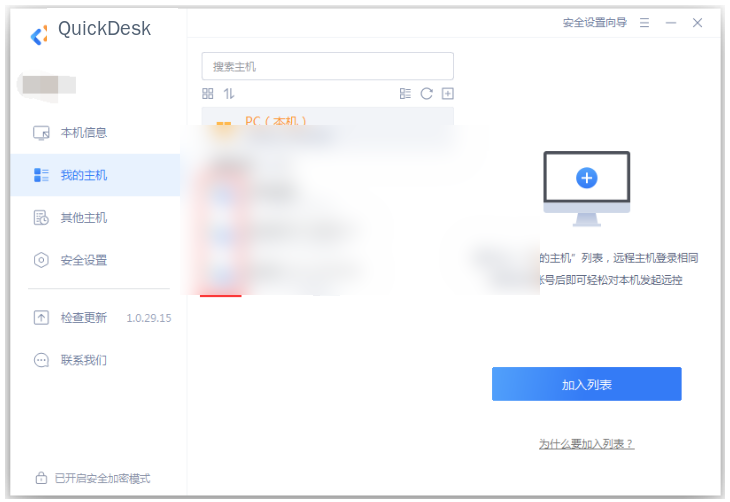
3. The motherboard in the computer being controlled must support network wake-up, and Wake-on-LAN must be enabled in the BIOS (referred to below as WOL wake-up).
When the computer manufacturer’s logo appears during startup, hold down F2 to enter the BIOS interface. (Most computers use F2; some brands use F1.)
After entering the BIOS, look under “Power Management” for one of the following options:
"Boot on LAN";
"Wake on LAN";
"PME Event WakeUp";
"Resume by MAC LAN";
"Wake-Up by PCI card";
"Wake Up On PCI PME";
"Power On by PCI Card";
"WakeUp by PME of PCI";
"Power On By PCI Devices";
"WakeUp by Onborad LAN";
Enable “Resume By PCI or PCI-E Device” or a similarly named option.
Note: The option name varies by motherboard. Enable any one matching option. Most laptops do not support this feature; contact the hardware manufacturer for details.
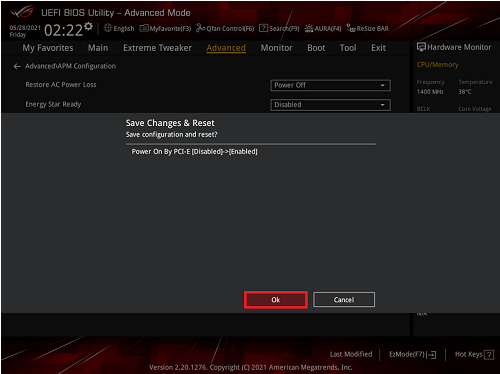
The following example shows the BIOS settings for an ASUS motherboard:
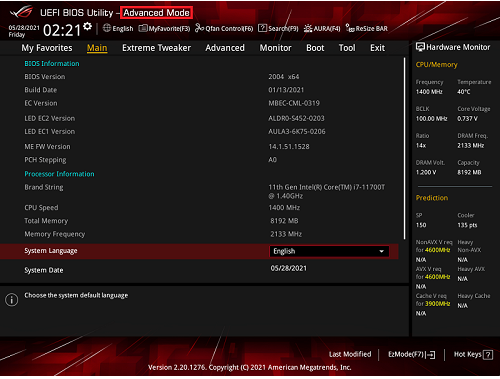
1. After powering on, press del or esc to enter the BIOS (motherboard settings), then open [Advanced mode].
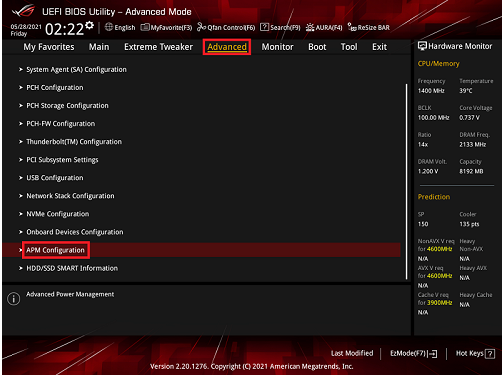
2. Switch to [Advanced] and select APM Configuration [APM Configuration].
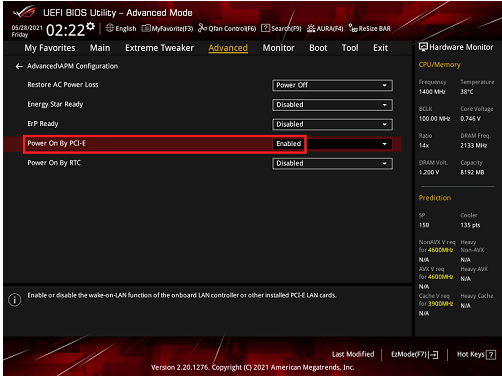
3. In the configuration screen, set Power On By PCI-E to Enabled.
4. When finished, press F10 to save the settings and restart the device.
4. Enable WOL-related options in the network adapter driver on the computer being controlled.
Wireless network adapters generally do not support WOL, while most wired network adapters do. (Contact the hardware manufacturer for details about hardware support.)
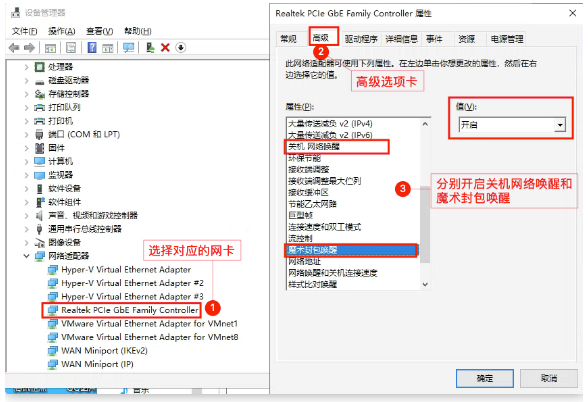
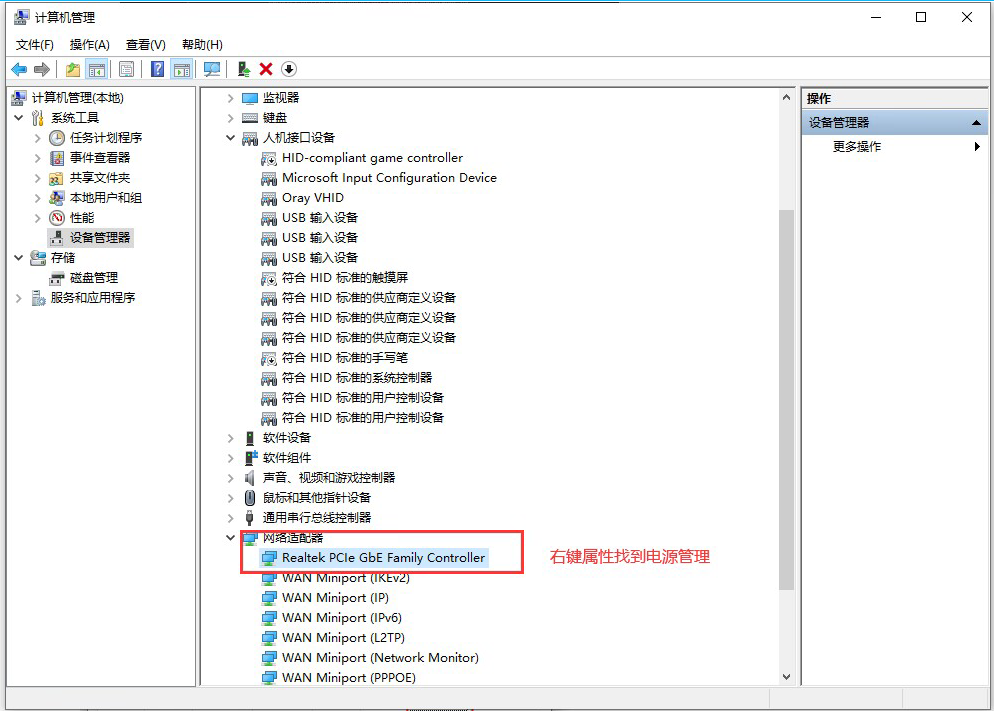
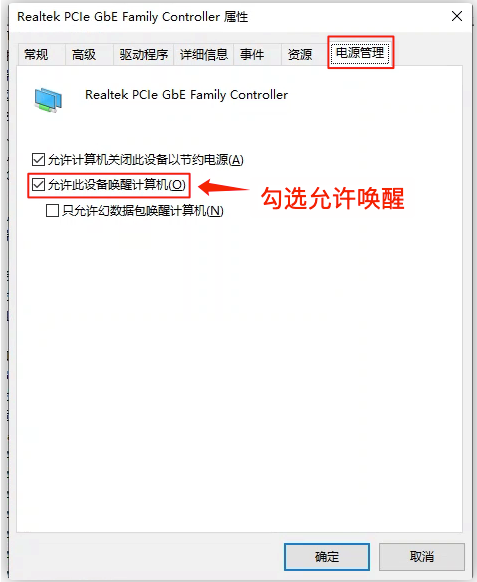
In Device Manager, find a network adapter that supports WOL wake-up and right-click it, then select “Properties.” Under “Power Management,” enable “Allow this device to wake the computer.” Then open the “Advanced” tab and enable “Shutdown Wake-On-Lan” and “Wake on Magic Packet.”
Note:
1. If the network adapter does not show the options below, this indicates that it does not support WOL.
2. Some network adapter options may have different names depending on the manufacturer. Search for setup instructions for your device brand if needed.
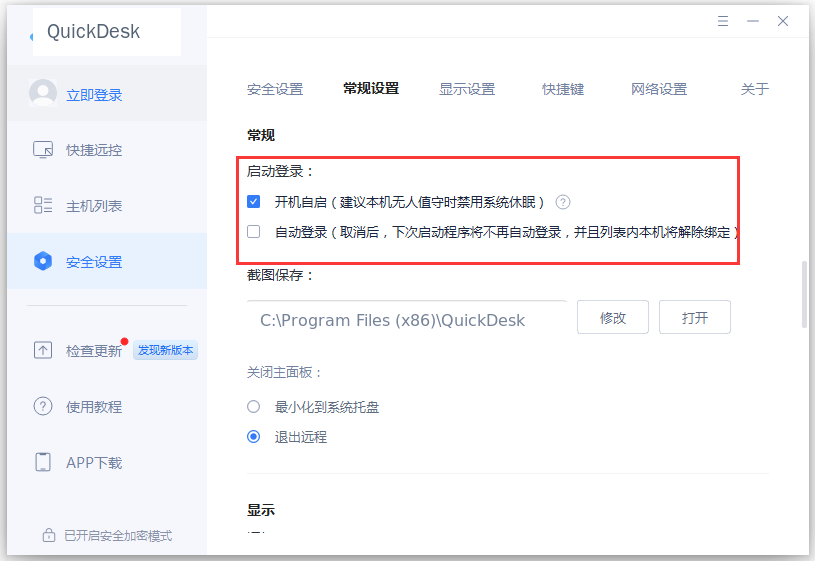
If the QuickDesk client does not start automatically after remote power-on, check whether automatic startup at boot is enabled in the client.
On some Windows 10 systems, Fast Startup must be disabled. If Fast Startup is not listed in Power Options, no change is needed.
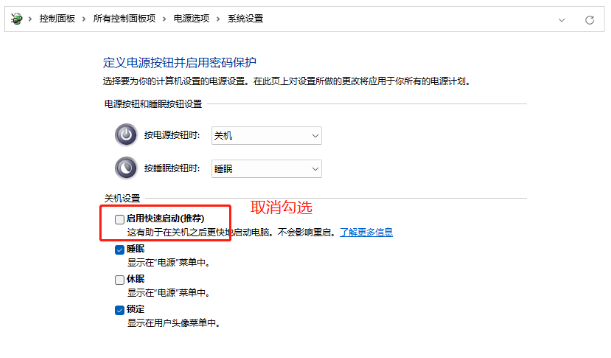
You can now try powering on the computer remotely.
5. To keep remote power-on available for a long time after the device is shut down, also configure MAC address binding on the router.
The instructions below cover Xiaomi and TP-LINK routers. The setup is generally similar on other router brands; search Baidu for instructions specific to your model.
Note:
If remote power-on still does not work after configuring Wake-on-LAN and the network adapter, check whether the firewall is blocking LAN communication and add the necessary allow rules according to your security policy.
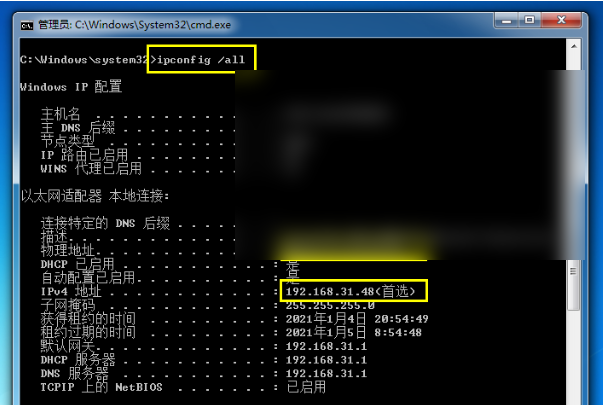
First, find the IP and MAC addresses of the device you want to power on.
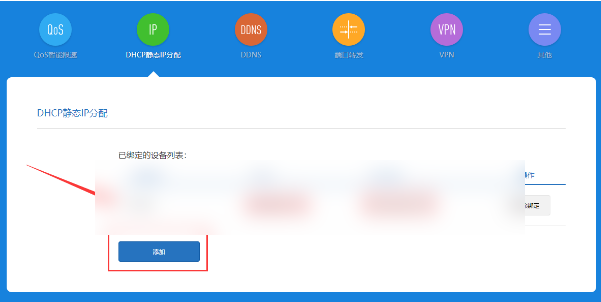
Xiaomi router: Enter the corresponding IP and MAC addresses in the appropriate fields, then save.
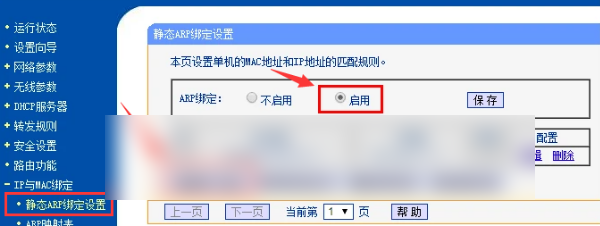
TP-LINK router: Enable ARP binding, add an entry, enter the device’s IP and MAC addresses in the corresponding fields, then save the settings.
MAC address binding prevents the router from releasing an IP address that has not been used for a long time and assigning it to another device. Otherwise, the computer you want to power on may no longer be reachable at that IP address.