If an incorrect password is entered more than five times on the Windows 10 sign-in screen, the system account is locked and the following message appears: “The referenced account is currently locked out and may not be logged on to.”
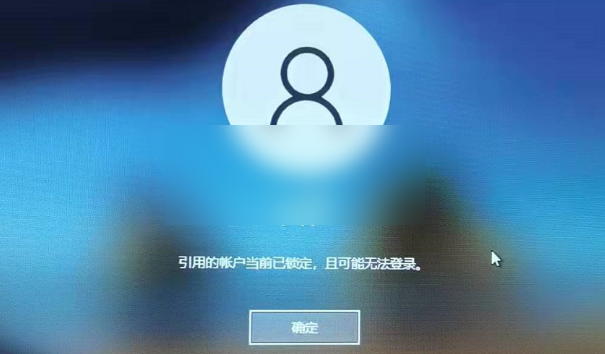
Why does Windows display “The referenced account is currently locked out and may not be logged on to”? This message may be caused by one of the following:
1. “The referenced account is currently locked out and may not be logged on to” is an official notification generated by Microsoft. It indicates that the PC user entered an incorrect password a certain number of times, so Windows locked the account and prevented the user from signing in.
2. Experts say this error commonly occurs on Windows 10 systems that are part of a domain with an account lockout threshold policy configured.
The error may also occur when a computer has multiple accounts and an account is temporarily locked after an incorrect password is entered repeatedly on the sign-in screen. An incorrectly configured account lockout threshold policy may also cause the error.
3. Even so, “The referenced account is currently locked out and may not be logged on to” is not an unsolvable problem. The only complication, if it can be called a problem, is that fixing the error may require intervention from a domain controller.
Before troubleshooting “The referenced account is currently locked out and may not be logged on to,” first make sure you understand the following basic checks:
a. Unplug the network cable and restart the computer;
b. Disconnect mapped drives, reset the password, and try again;
c. Check the date and time settings.
Solutions for “The referenced account is currently locked out and may not be logged on to”:
Solution 1: Fix the error by editing the local security policy
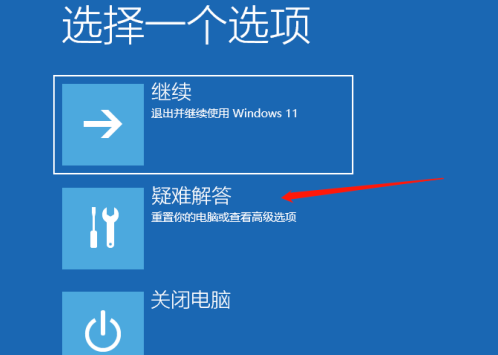
1. If you cannot sign in, first try to enter Safe Mode. Turn the computer off and then on. As soon as the startup screen appears, press and hold the power button to force it to shut down. Repeat this two or three times. On the screen shown below, click “Troubleshoot.” (This method applies to both Windows 10 and Windows 11.)
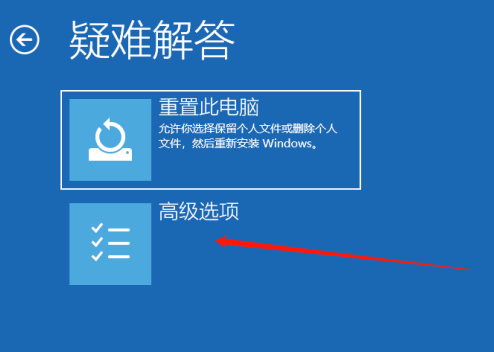
2. After opening Troubleshoot, click “Advanced options,” as shown below.
3. In Advanced options, click “Startup Settings,” as shown below.
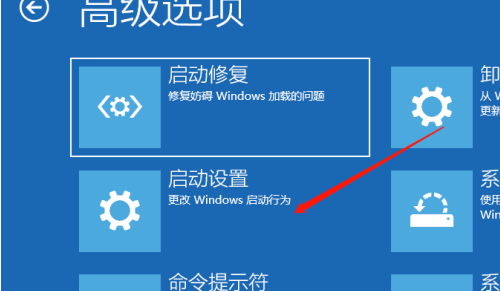
4. On the Startup Settings screen, click “Restart,” as shown below.
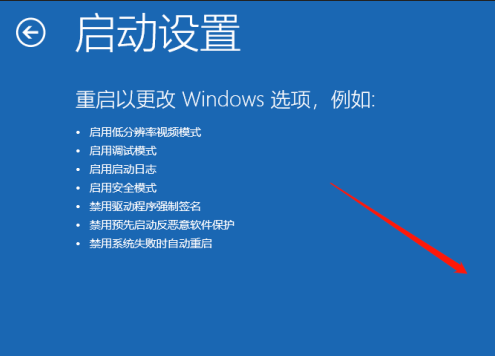
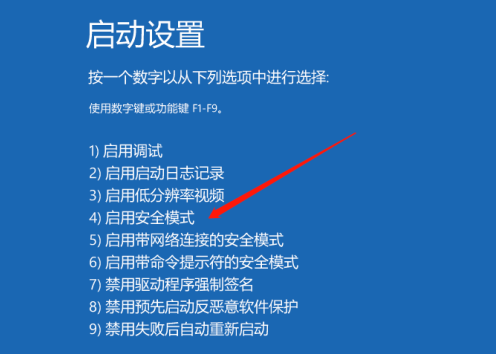
5. After restarting, press the number for the startup option you want. Select 4 to enable Safe Mode.
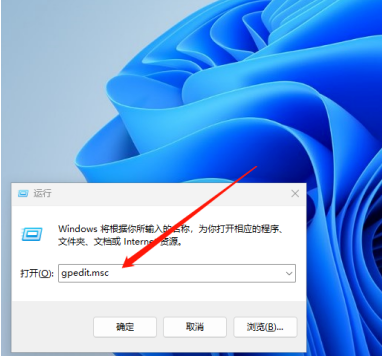
6. After reaching the desktop, press WIN + R to open Run, enter “gpedit.msc,” and open the Local Group Policy Editor.
7. In the Local Group Policy Editor, open Windows Settings, then locate Security Settings.
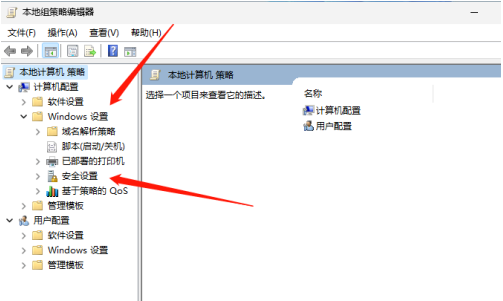
8. Open Security Settings, click Account Policies, then open Account Lockout Policy on the right.
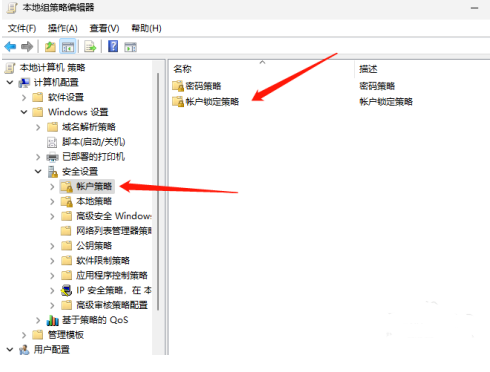
9. Under Account Lockout Policy, click Account lockout threshold.
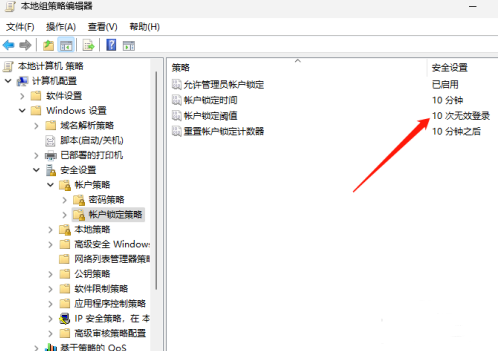
10. The message appears because the system’s default lockout threshold is 10 minutes. Change it to 0 minutes, then restart to sign in to the system.
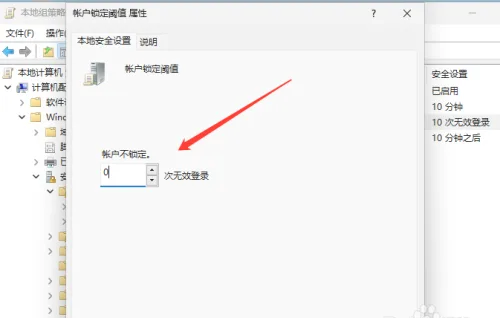
You should then be able to sign in to your account without seeing the error “The referenced account is currently locked out and may not be logged on to.”
Solution 2: Check the DNS settings
1. In some cases, users report that incorrect DNS settings caused the “The referenced account is currently locked out and may not be logged on to” error. Potentially unwanted applications such as Utopia.net may act as DNS hijackers and change DNS settings without permission. To restore the settings, follow these steps:
Note: First remove all suspicious applications from Control Panel.
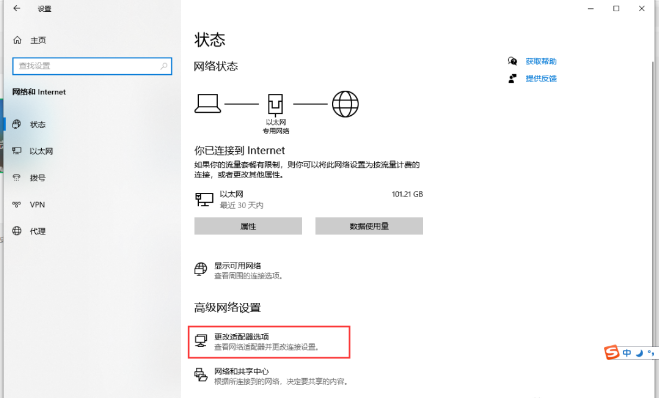
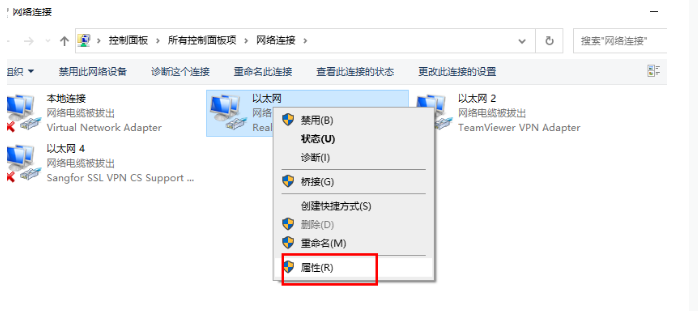
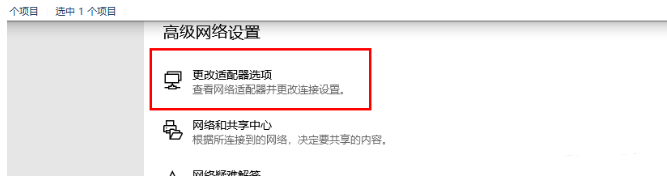
2. Right-click the “Start” button and select “Network Connections.” In the right pane, select Ethernet, then click “Change adapter options” on the right. Right-click Ethernet and select “Properties.” From the list, find Internet Protocol Version 4 (TCP / IPv4), then click “Properties.” In the Properties window, select “Obtain DNS server address automatically,” then click “OK.”
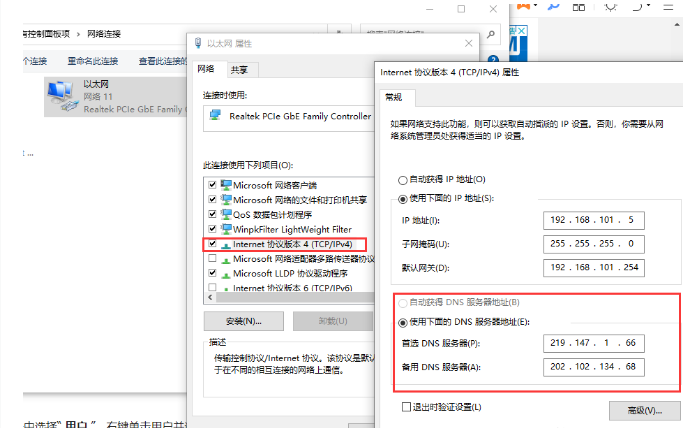
3. If that does not work, select “Use the following DNS server addresses” and enter the following Google DNS value: 114DNS.
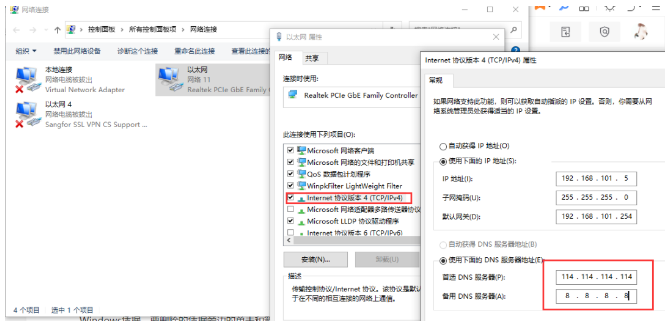
Preferred DNS server: 8.8.8.8. Alternate DNS server: 8.8.4.4.
Solution 3: Set the account password to never expire
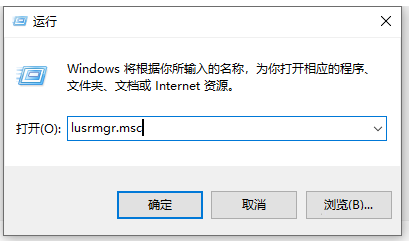
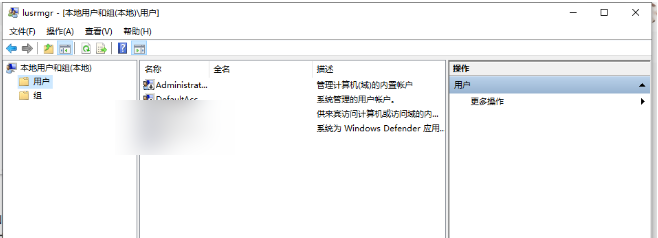
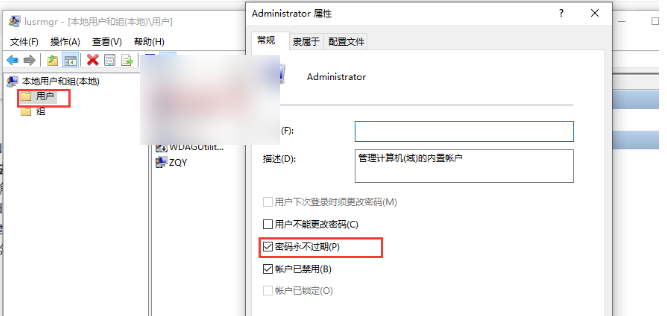
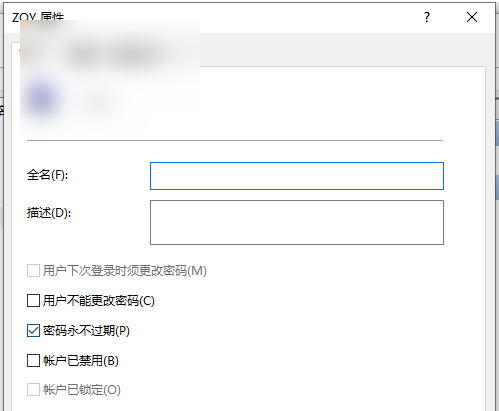
Make sure the password is set to never expire in the “Local Users and Groups” menu: press Windows key + R, enter lusrmgr.msc, and press Enter. Select “Users” in the right pane, right-click the user, and select “Properties.” On the “General” tab, select the “Password never expires” checkbox, then click “OK.”
Solution 4: Clear cached credentials from the computer
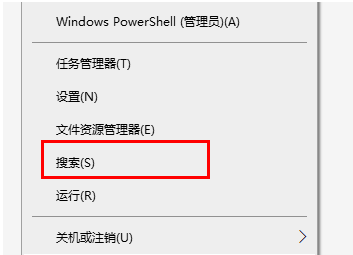
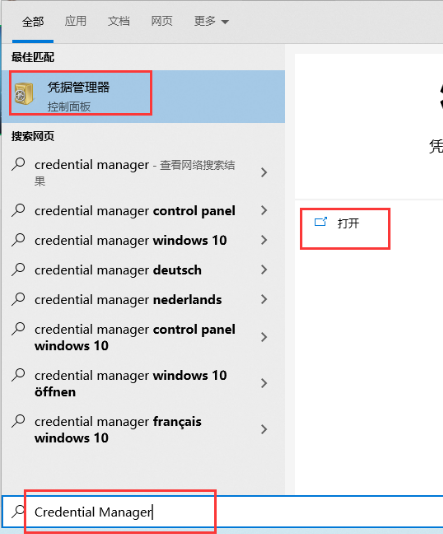
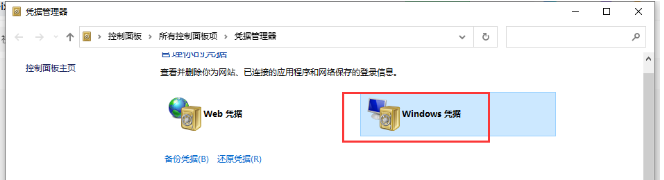
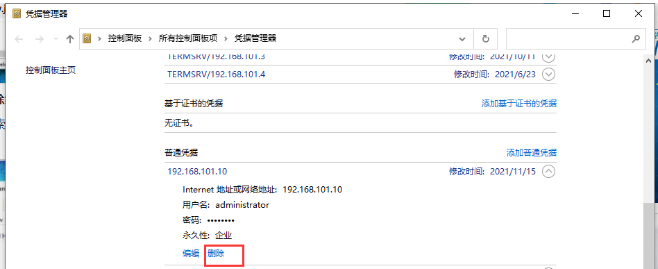
Click the “Start” button, enter Credential Manager in the search box, and select Windows Credentials. Click the arrow next to the credential you want to remove, then select “Delete.”
Solution 5: Use a password reset disk or format Windows
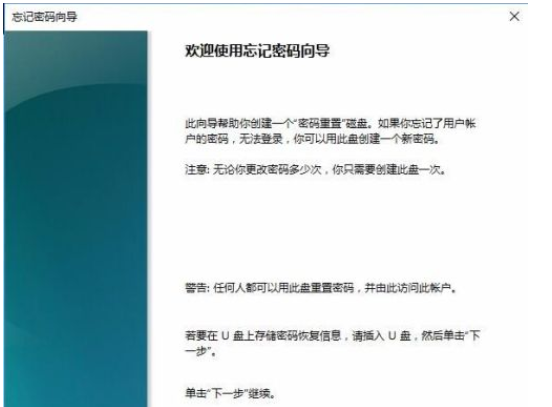
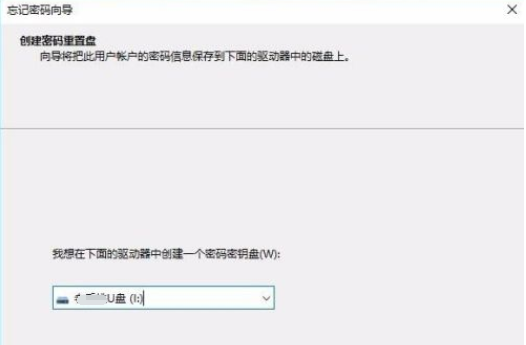
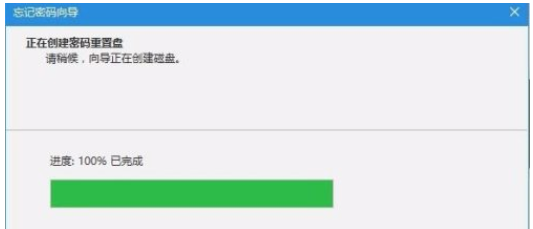
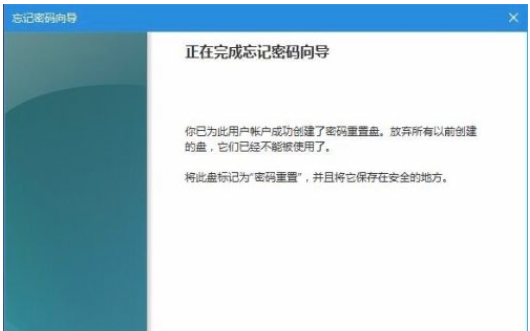
If you use a home computer with a single administrator account that has no account lockout threshold policy configured, but the message “The referenced account is currently locked out and may not be logged on to” still appears, the only solution is to reset the password with a password reset disk. However, you must have created such a disk beforehand.
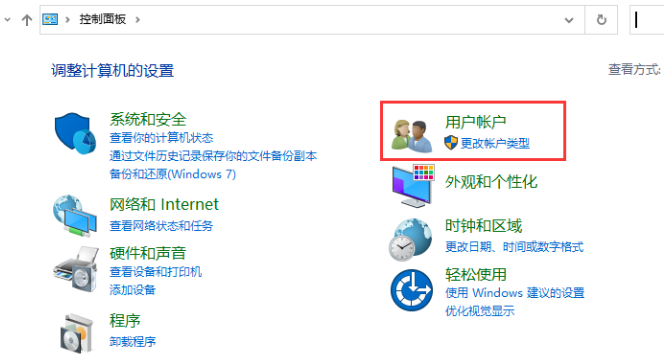
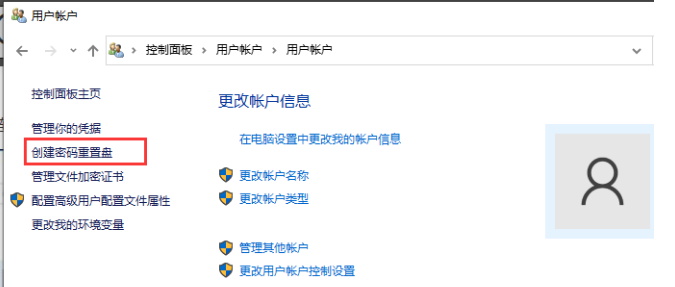
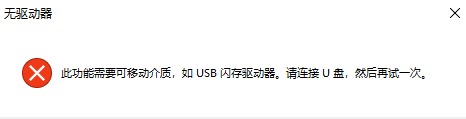
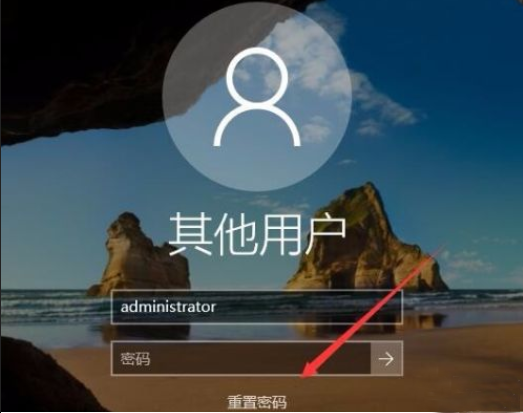
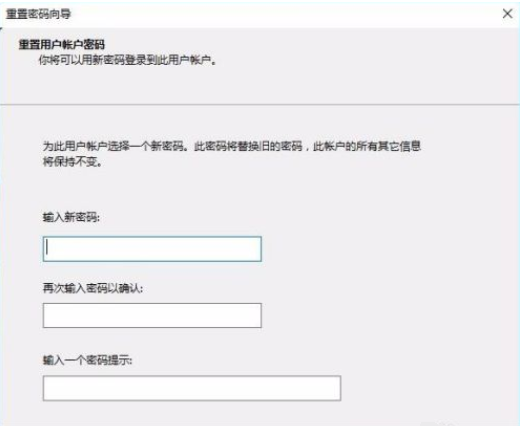
If you do not have a password reset disk, you will have to format Windows and reinstall the system.