QuickDesk Screen Wall displays the screens of multiple computers from your Bound List or Saved List in a single view, making it easier to monitor and manage remote computers in one place.
Screen Wall can display multiple computer screens at the same time, so you can quickly check each computer’s live status. Follow the steps below to use it.
1. Open Screen Wall
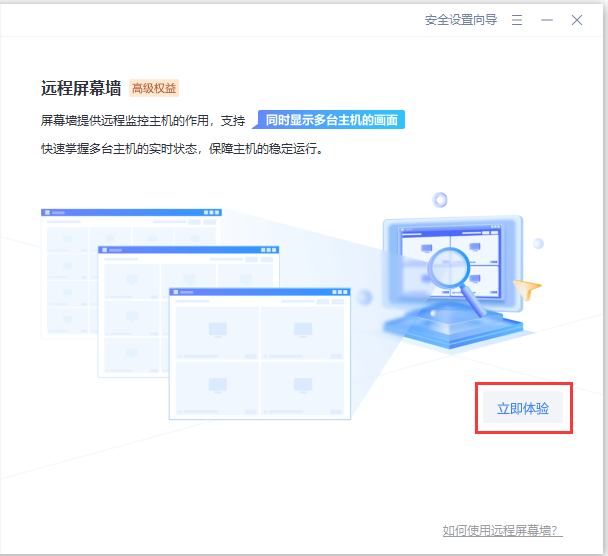
Sign in to the same QuickDesk account, then select “Screen Wall” to open it.
(Screen Wall is an advanced feature.)
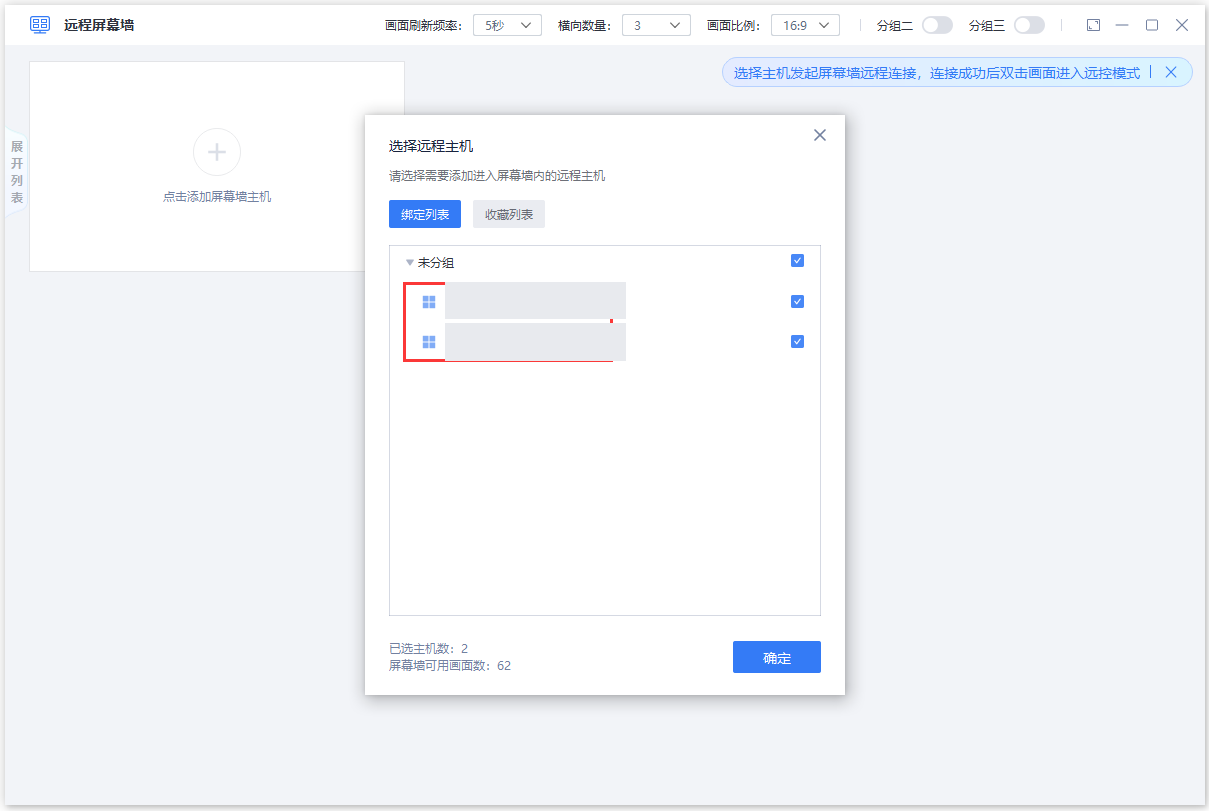
2. Select computers to connect to remotely
Click the add area, then select the remote computers you want to monitor in the pop-up window and connect to them. You can select computers from the Bound List or Saved List.
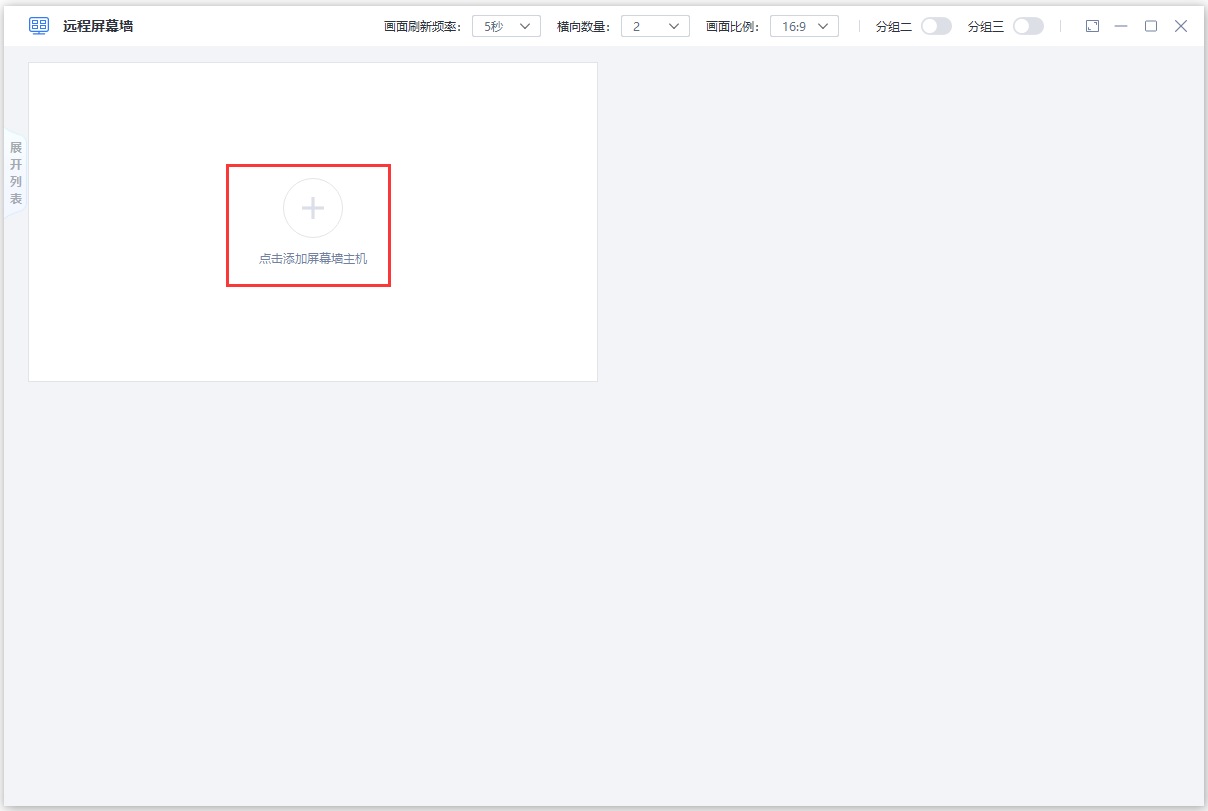
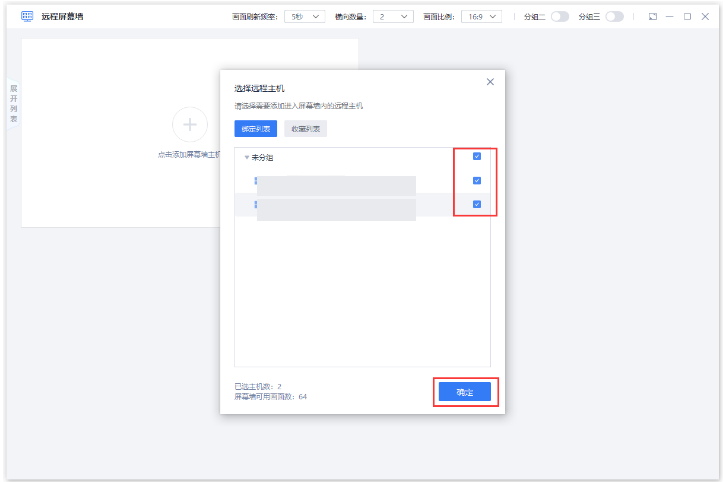
3. Add more screens
You can add computers up to the number of screens enabled for your account, with up to 128 computer screens displayed at the same time.
4. Organize Screen Wall into groups
If you have many screens, you can use groups to organize them. In addition to the main screen, you can add two groups.
(Groups are available for dual-monitor computers and require at least 36 screens to be enabled.)
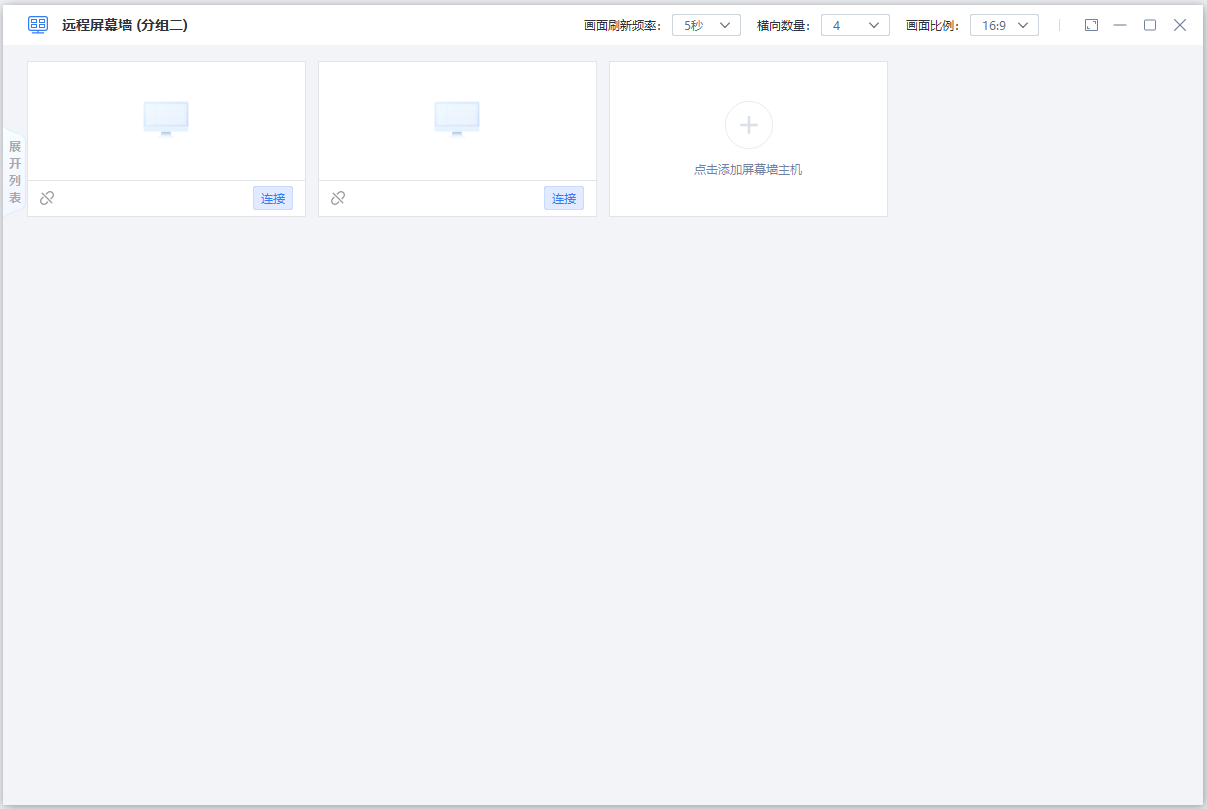
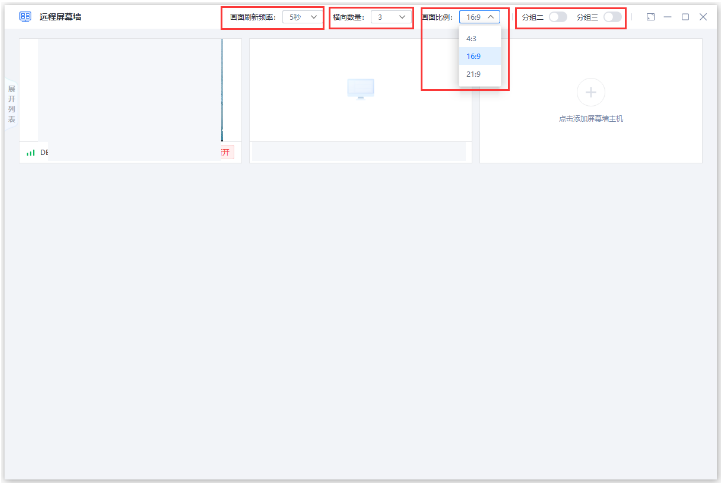
5. Customize Screen Wall settings
You can set the screen refresh rate, the number of screens per row, and the screen aspect ratio.
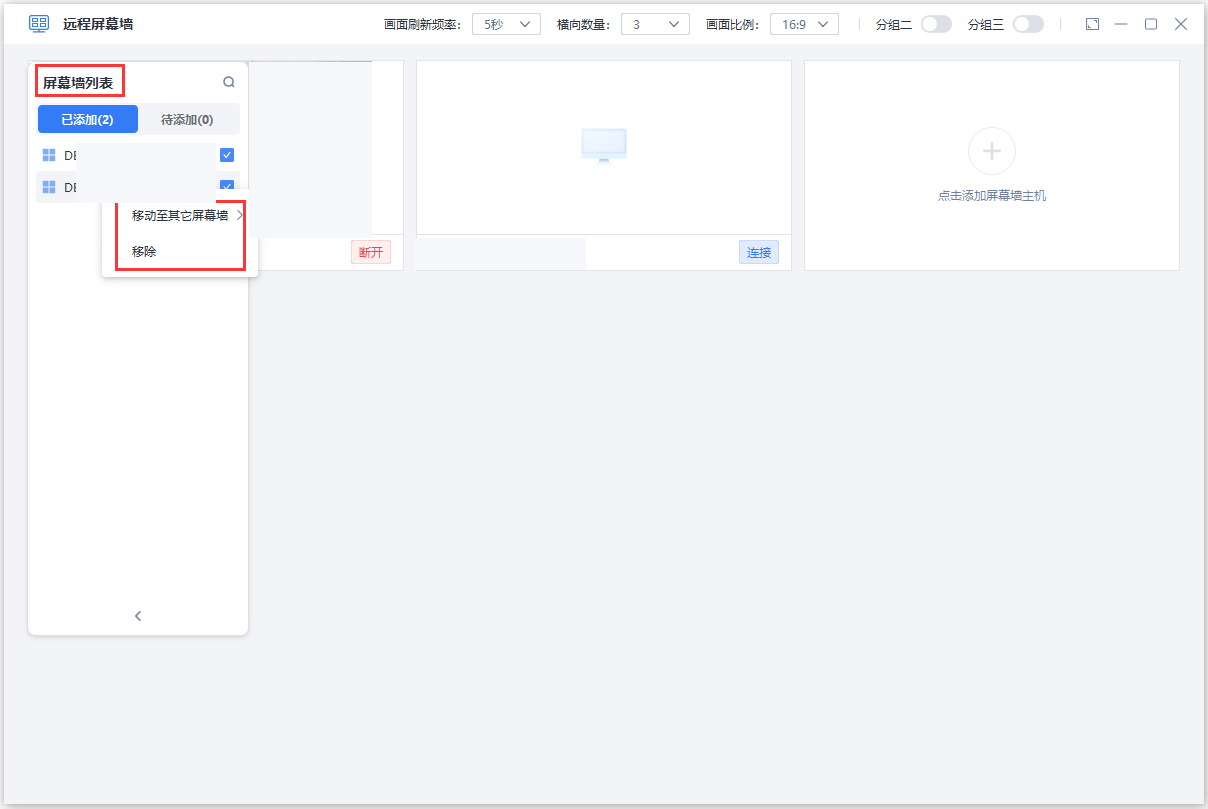
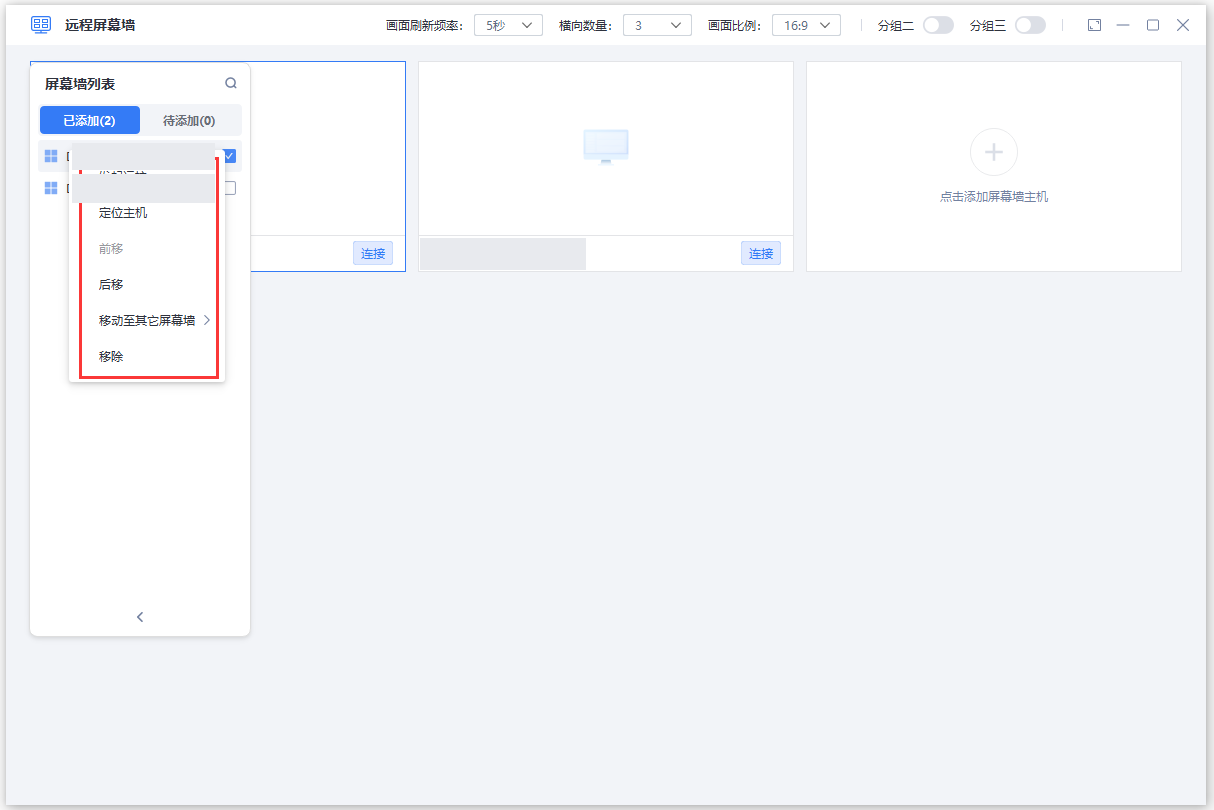
6. Manage the Screen Wall list
Open the list on the left to move or remove computers within the current Screen Wall, or start remote control directly.
Note: The same account can use Screen Wall on only one computer at a time. If you open Screen Wall on another computer, Screen Wall will close automatically on the original computer.